
On this page
The figma vs canva choice comes down to your deliverable: choose Figma for interface systems and prototypes, or Canva for quickly producing everyday visual content.
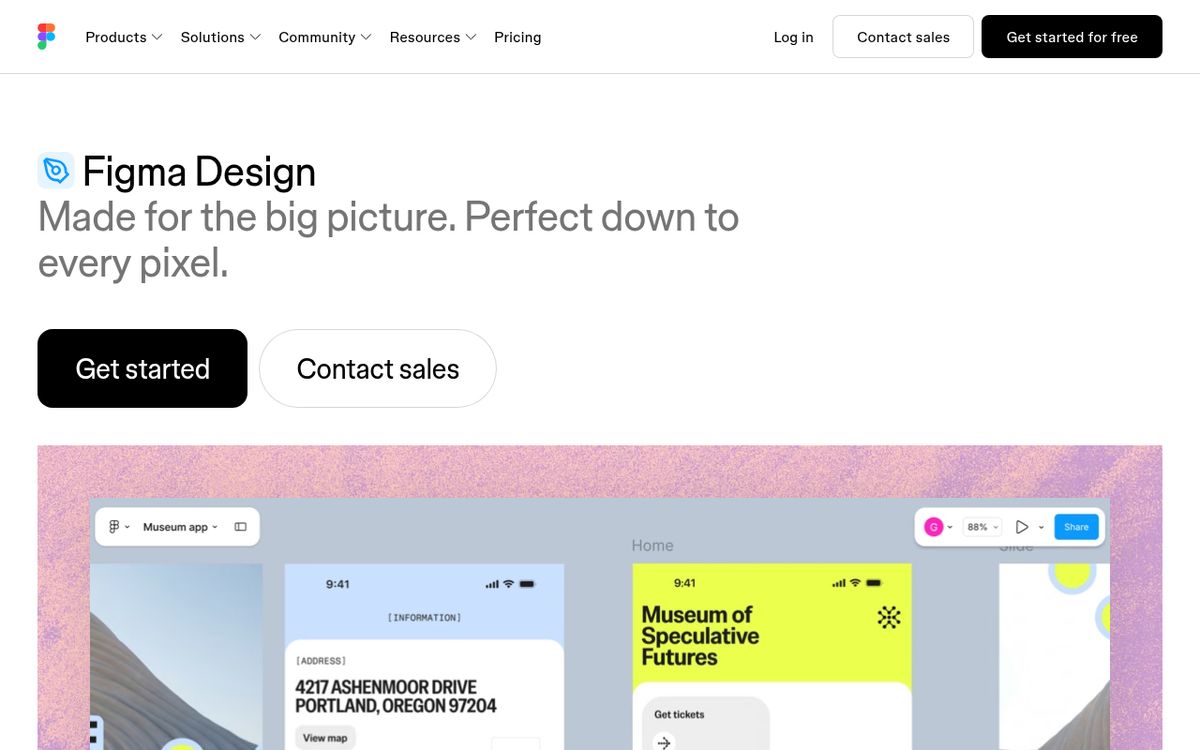
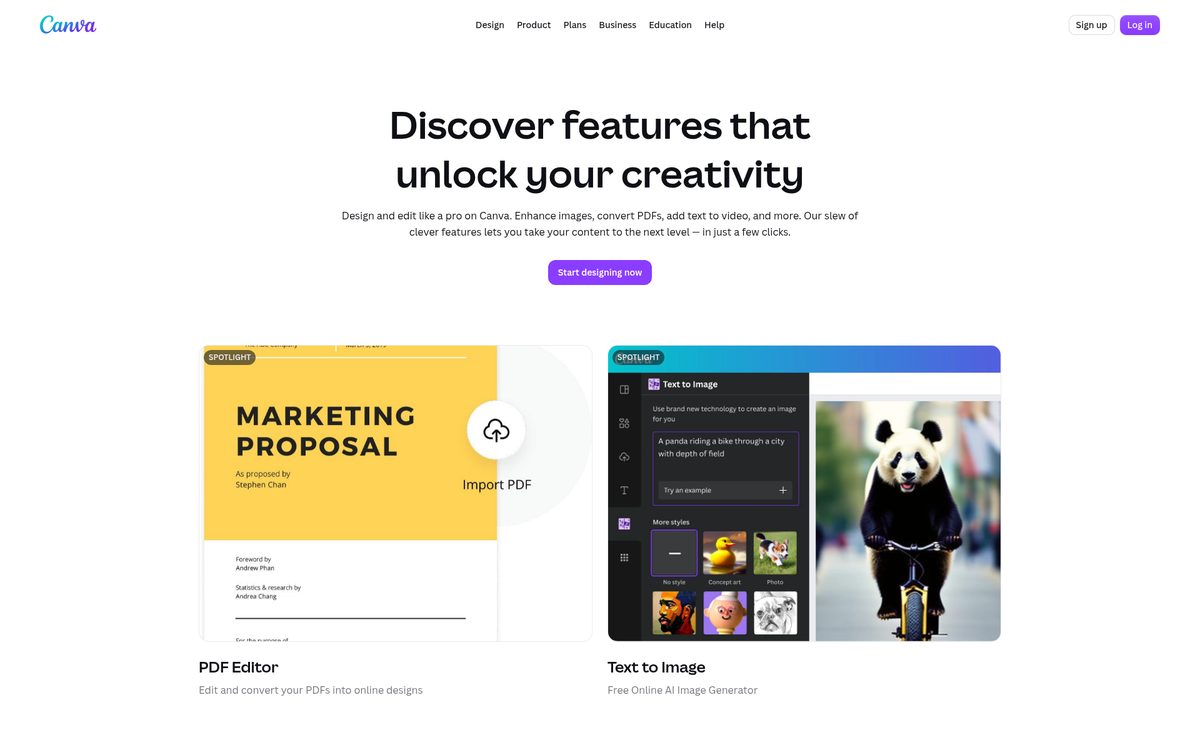
Both support collaborative design, and both now extend beyond their original specialties. That overlap makes a simple “professional versus beginner” comparison misleading. A professional marketer may work faster in Canva, while a beginner learning interface design may benefit more from Figma.
Start with what you need to hand over: a reusable product interface, a presentation, a campaign asset, or a published experience. Then judge the tools against that specific task rather than their longest feature lists.
Who each tool is really for
The most useful distinction is product design versus content production. Figma’s interface-design environment is organized around building screens, reusable components, layouts, and interactive prototypes. It suits designers working with developers on websites and applications.
Canva is built around accessible editing and ready-to-customize visual formats. It fits small-business owners, educators, marketers, and designers producing social graphics, documents, presentations, and promotional materials.
Neither description is a restriction. You can make a simple social graphic in Figma, and you can sketch a website layout in Canva. The question is how much work the surrounding workflow requires.
For a restaurant owner updating a promotional flyer, a suitable template may matter more than component behavior. For a designer maintaining a navigation system across dozens of screens, reusable interface structure matters more than a large template catalog.
Before testing either app, write down three outputs you create regularly. Those recurring jobs are a better buying guide than an impressive demonstration.
Compare control and reusable design
Figma’s strength is structured interface work. Its components and layout capabilities help you make related screens behave like a coherent system rather than a collection of separate pictures.
That matters when labels change, content grows, or a design needs different screen sizes. Instead of manually fixing every repeated element, you can establish reusable patterns and refine them together.
Canva’s strength is speed within a visual communication workflow. Starting with an existing format can remove much of the setup involved in arranging a slide, poster, or announcement.
Try this practical comparison:
- Choose a real project rather than a sample tutorial.
- Build its main layout in each editor.
- Replace the heading with a substantially longer heading.
- Create a second version for a different audience.
- Record which adjustments require repetitive manual work.
The winner is not necessarily the tool with more controls. It is the one that makes your frequent changes predictable. For typography decisions before you begin, our serif versus sans serif guide can help narrow your choices.
Compare collaboration and handoff
Both platforms support shared work, but the next person’s job should determine how you evaluate collaboration.
For product teams, a useful handoff includes more than a finished image. Developers need to understand spacing, states, behavior, and reusable patterns. Reviewers need enough context to distinguish a draft idea from an approved direction.
For content teams, handoff may mean letting a colleague replace a photo, revise a date, and export an approved layout without rebuilding it.
Run a small collaboration test before moving a whole team:
- Invite a colleague using the access level they would normally have.
- Ask them to leave feedback on one specific element.
- Make the requested revision.
- Ask them to locate the current approved version.
- Have the eventual recipient complete their actual next task.
Check editing permissions and plan requirements rather than assuming every collaborator needs the same subscription. Also agree on file names and approval responsibilities. A capable editor cannot compensate for unclear ownership or several competing “final” versions.
Understand the free plans
Treat a free account as a workflow trial, not a promise that every future requirement will remain free.
The official Figma pricing page describes a free Starter plan with limited access to its products. Paid plans expand capabilities such as team resources and larger professional workflows. Access also depends on the type of seat assigned to a person.
The official Canva pricing page lists a Free plan alongside paid options. Free users can create designs, while premium content, advanced capabilities, and AI allowances depend on the plan.
Avoid comparing subscription names alone. Check whether the particular template, asset, publishing capability, or collaboration control you need is included.
Before committing, answer these questions:
- Can everyone open and review the work?
- Can the required people edit it?
- Are the assets you selected included?
- Can you produce the final deliverable?
- Are administrative controls necessary?
Prices, AI allowances, and product access can change. Recheck the vendor pages when purchasing rather than relying on an older screenshot or someone else’s account.
Account for the expanding product families
The comparison is increasingly about connected workflows, not just two standalone editors.
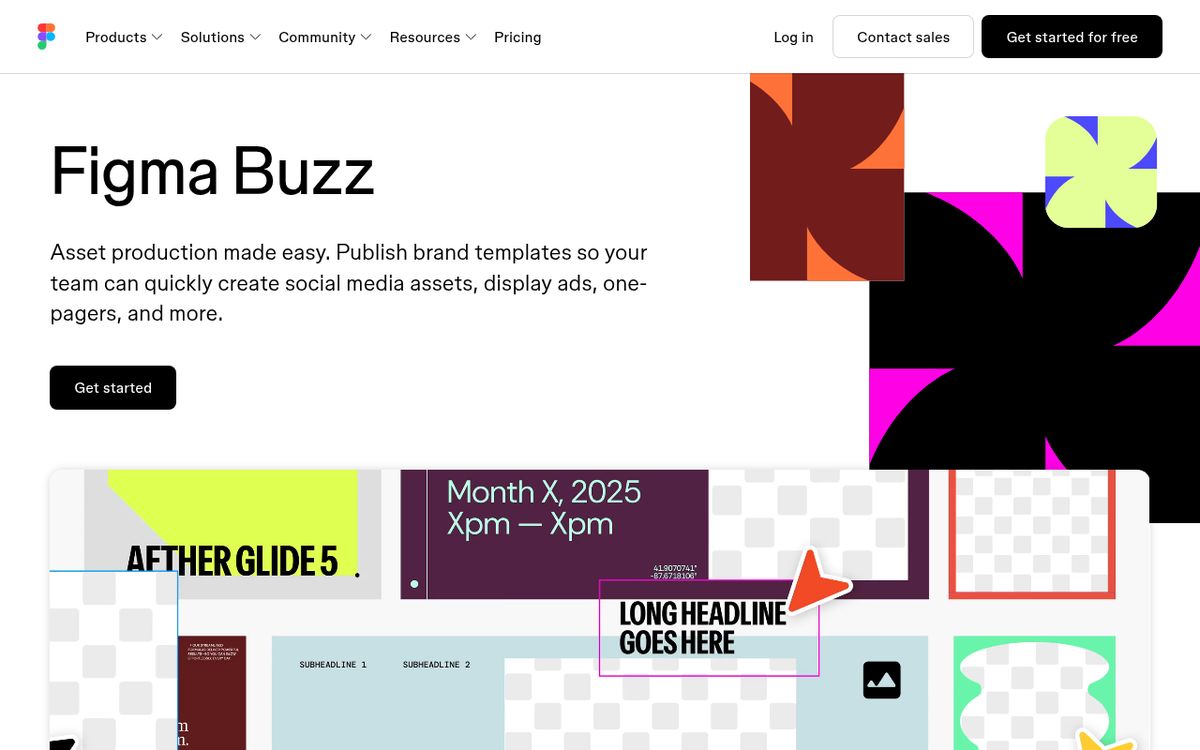
Figma Buzz focuses on producing on-brand assets, bringing marketing production closer to an existing design workflow.
Figma Sites adds website creation and publishing to the product family.
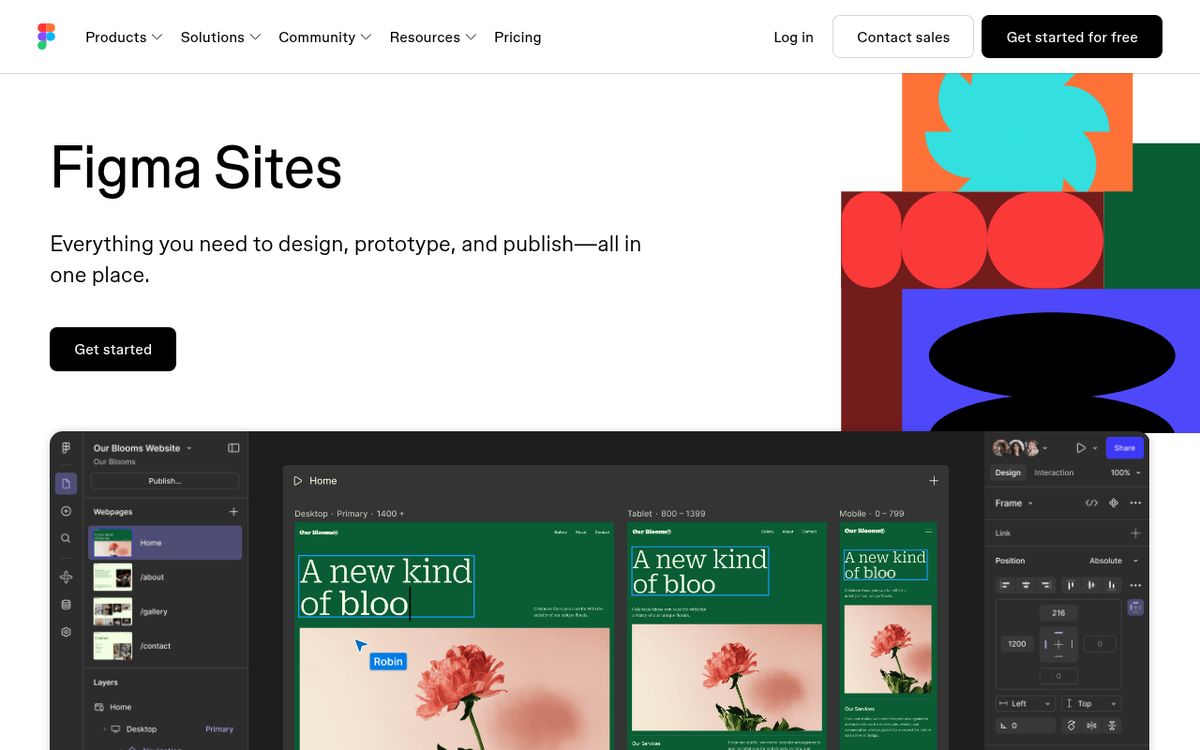
These products make it less accurate to say that Figma is only for interface mockups. However, access to an editor does not automatically establish that publishing or team-template features are included in your plan.
On the other side, Canva Code supports creating interactive experiences from prompts. That broadens Canva beyond static graphics, but a generated experience still needs testing for behavior, accessibility, and suitability.
Canva also documents Affinity access, connecting its ecosystem with professional photo-editing, vector, and publishing tools. This is not the same as every advanced editing capability living inside the Canva editor.
Judge these additions by whether they remove a real handoff or repeated task. Do not switch platforms merely because a new product exists.
Pick by the work you repeat
Make the final decision around your most frequent deliverable.
Choose Figma when interface layouts, reusable components, prototypes, and product-team collaboration are central. Choose Canva when you repeatedly need polished communication materials that colleagues can update quickly.
Use both when that reflects the team’s actual responsibilities. A product designer can maintain interface work in one environment while marketing colleagues create campaign materials in another. Shared colors, typography choices, and clear asset ownership matter more than forcing everything into one file type.
If Canva is your likely choice, practice a common production task with our guide to cropping in Canva.
Give each candidate one real project, one reviewer, and one revision round. Choose the workflow that reaches an accurate, usable result with fewer avoidable steps.
Reach designers & developers at work
Sponsored posts, links and listings, each clearly labelled as sponsored. One sponsor per placement.
Become a sponsor