
On this page
To learn how to clear browser history, open your browser's history or browsing-data controls, choose a time range, and delete the records you no longer want stored.
Before confirming, check the selected data types. Browsing history, cookies, cached files, saved passwords, and download history are different categories. A broad cleanup can sign you out of websites or remove information you intended to keep.
Deleting browser records also does not erase every record of your internet activity. Websites, account services, and network operators may keep their own information independently.
Choose the smallest useful cleanup
The safest starting point is history only when your goal is removing visited-page records. Add other data types only when you understand their effects.
Common cleanup categories include:
- Browsing history: records of pages visited.
- Cookies and site data: information websites use for sessions and preferences.
- Cached files: locally stored resources used to load pages.
- Download history: the browser's list of downloads.
- Saved passwords: credentials stored by the browser.
Removing a download-history entry does not necessarily delete the downloaded file. Likewise, clearing cached files is not the same as removing saved credentials.
Review synchronization before deleting anything sensitive. Some browsers can propagate a deletion to other signed-in devices. If you want to clean only one computer, check the browser's sync behavior first.
For a single embarrassing or incorrect history entry, consider removing that entry instead of clearing months of useful records. Before selling a device, however, browser cleanup alone is not a substitute for the device manufacturer's full preparation and erase procedure.
Clear history in Chrome
Chrome's browsing-data instructions explain the data categories and how synchronized deletion behaves.
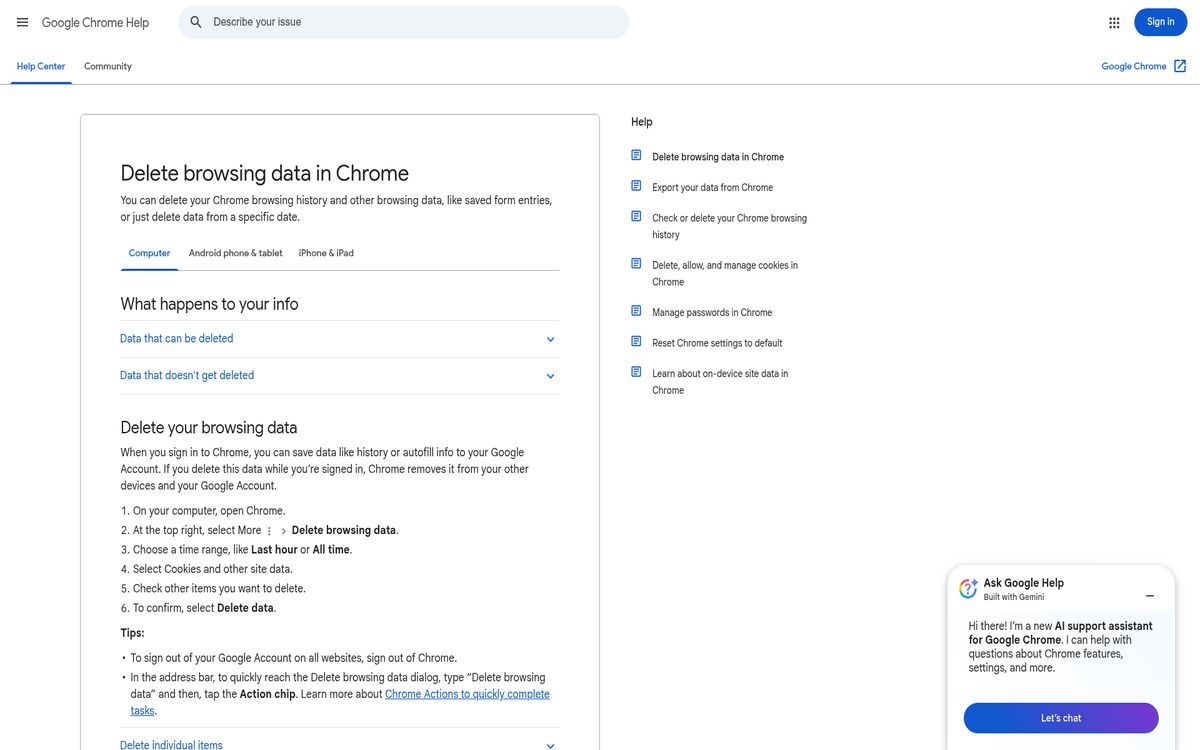
For a computer, use Delete browsing data from the browser's menu:
- Open the menu in the upper-right corner.
- Select Delete browsing data.
- Choose the time range you want.
- Select Browsing history.
- Review every other selected category.
- Confirm the deletion.
If you want to preserve website sessions, do not automatically include cookies and other site data. If you want to preserve saved credentials, make sure password-related categories are not selected.
On phones, use the same official help page's platform selector for the current mobile procedure. The location of the command can differ between mobile operating systems, so do not assume the desktop menu structure applies.
Google notes that deleting a synchronized data type can delete it from other devices and your account. Search activity and other account activity may require separate management. Clearing the browser's visited-page list should not be mistaken for clearing every account-level record.
Clear history in Safari on computers and phones
Safari's Mac instructions use the application's History menu.
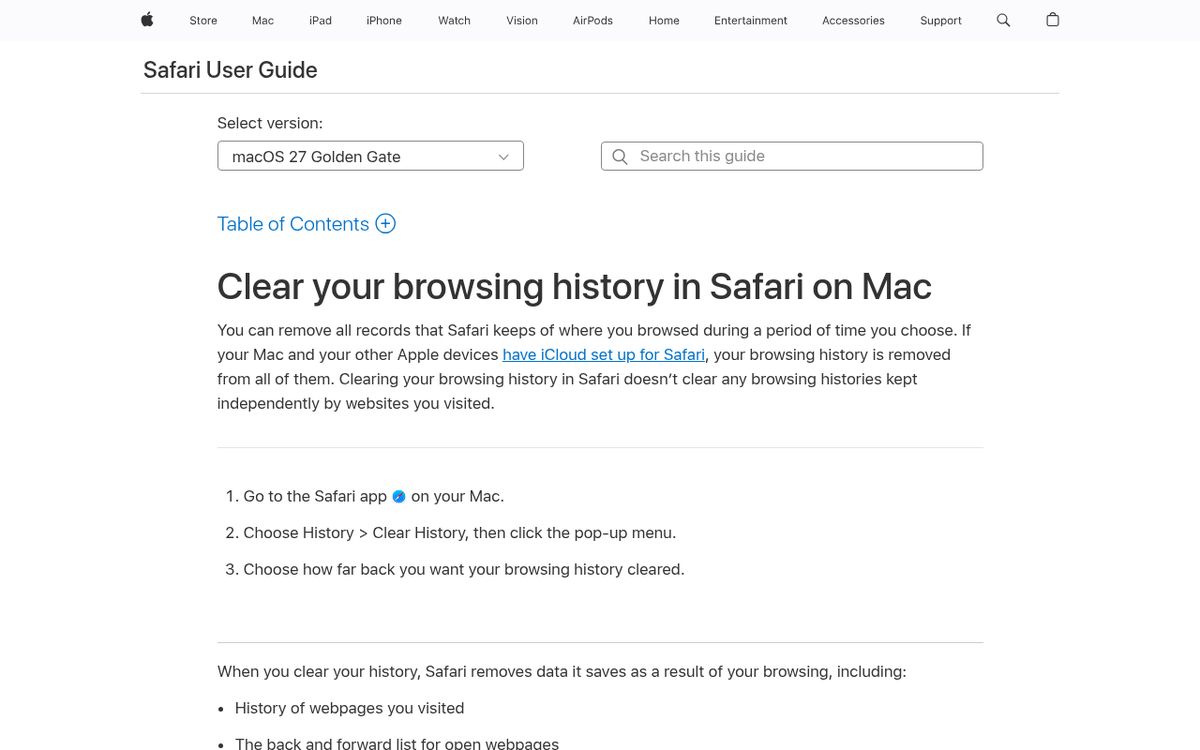
The Mac procedure is:
- Open the browser.
- Choose History > Clear History.
- Choose how far back to clear.
- Complete the confirmation.
Pay attention to cross-device history removal. Apple says that when its cloud synchronization is configured for the browser, history is removed from the connected devices too.
For a phone, Apple's history and website-data instructions document a separate settings path.
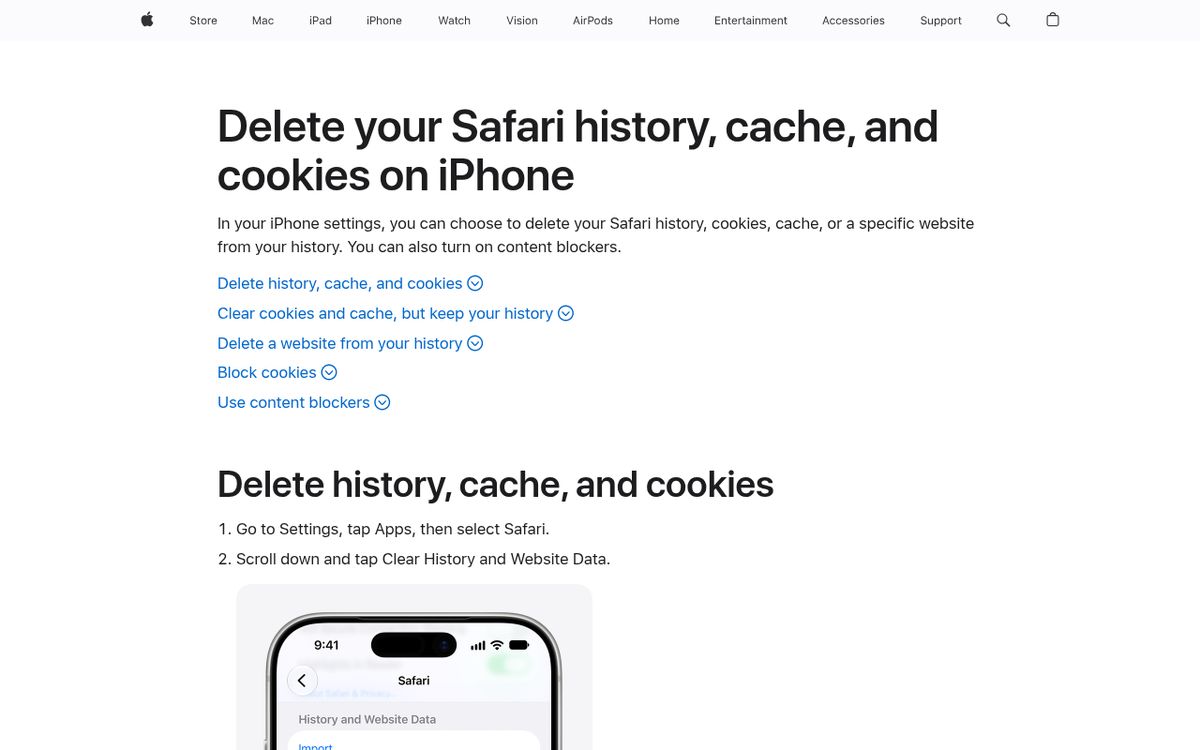
- Open Settings.
- Select Apps, then Safari.
- Select Clear History and Website Data.
- Choose the timeframe.
- Select Clear History.
That phone command includes website data, rather than being merely a visited-page-list cleanup. Apple says it does not change AutoFill information.
A gray command can mean there is nothing to delete or that content restrictions need checking. Do not assume a disabled button indicates a damaged installation. Also remember that independently maintained website records are unaffected.
Clear history in Edge
Microsoft Edge's history guide distinguishes information stored on a device, synchronized information, and cloud records.
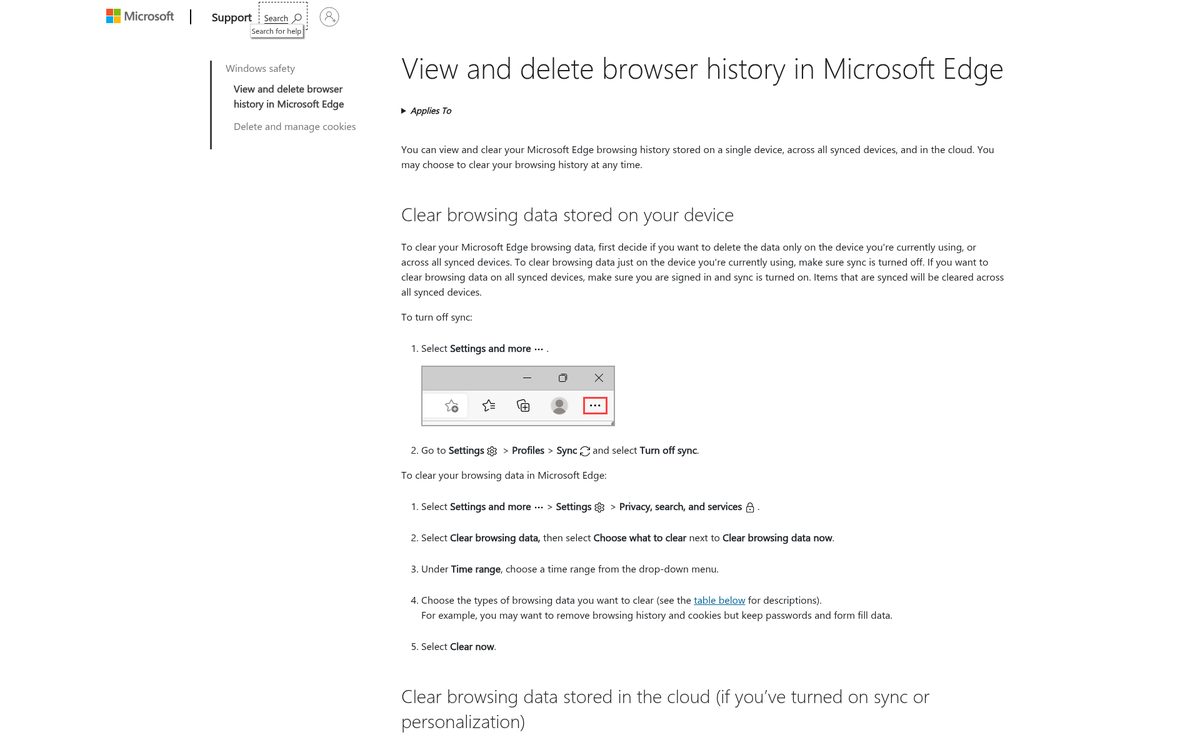
First decide on this device versus synced devices. Microsoft's instructions say to turn sync off first if you want the cleanup limited to the current device.
For desktop cleanup:
- Open Settings and more.
- Select Settings > Privacy, search, and services.
- Find Clear browsing data.
- Select Choose what to clear beside Clear browsing data now.
- Choose a time range.
- Select the categories to remove.
- Select Clear now.
Review the list rather than accepting every checked box. For example, you might want history removed while retaining passwords and form-fill information.
Microsoft also distinguishes its privacy dashboard from local browser cleanup. Deleting information through that dashboard does not automatically remove the corresponding information from your device.
On a phone, use the installed browser's browsing-data settings and review the same categories before confirming. Do not copy a desktop sequence into a mobile interface where the controls differ.
Find the appropriate Firefox cleanup controls
Firefox's official history-removal help is the appropriate reference for its current desktop controls.

Because menu labels can vary between releases and platforms, focus on the selected categories and timeframe, not a memorized screenshot.
Open the browser's history or privacy settings, locate its history-clearing controls, and inspect the available choices before confirming. If you are using the phone version, use its own settings rather than assuming that the desktop instructions match.
Do not select saved login information merely because you are trying to remove a page from your visited-site list. Similarly, deleting cookies may require you to sign back into services afterward.
The official help page may present a browser-verification challenge on some connections. If that happens, open it directly in your normal browser rather than using a third-party cleanup utility as a substitute.
For future browsing choices, our privacy-focused browser comparison explains alternatives without treating history deletion as a complete privacy strategy.
Verify the result and understand the limits
Finish with a quick history check. Reopen the history view and confirm that records from the intended period are gone. If they remain elsewhere, check whether you used another browser, another profile, or a separate signed-in device.
If websites now ask you to sign in, cookies or site data were probably included. That is different from losing a password stored in a password manager. Check which category changed before assuming credentials were deleted.
Browser cleanup is useful for housekeeping and reducing what another person can see in your local browser. It does not retract information already submitted to a website or delete independently stored account records.
Choose the narrowest cleanup that accomplishes your goal, check synchronization first, and reserve full-data deletion for situations where you genuinely want the extra disruption.
Reach designers & developers at work
Sponsored posts, links and listings, each clearly labelled as sponsored. One sponsor per placement.
Become a sponsor