
On this page
The answer to how to connect alexa to wifi is to use the Alexa app to set up your Echo or change its saved network, then follow the prompts for your model.
Amazon's Echo setup instructions cover adding a device through the app.
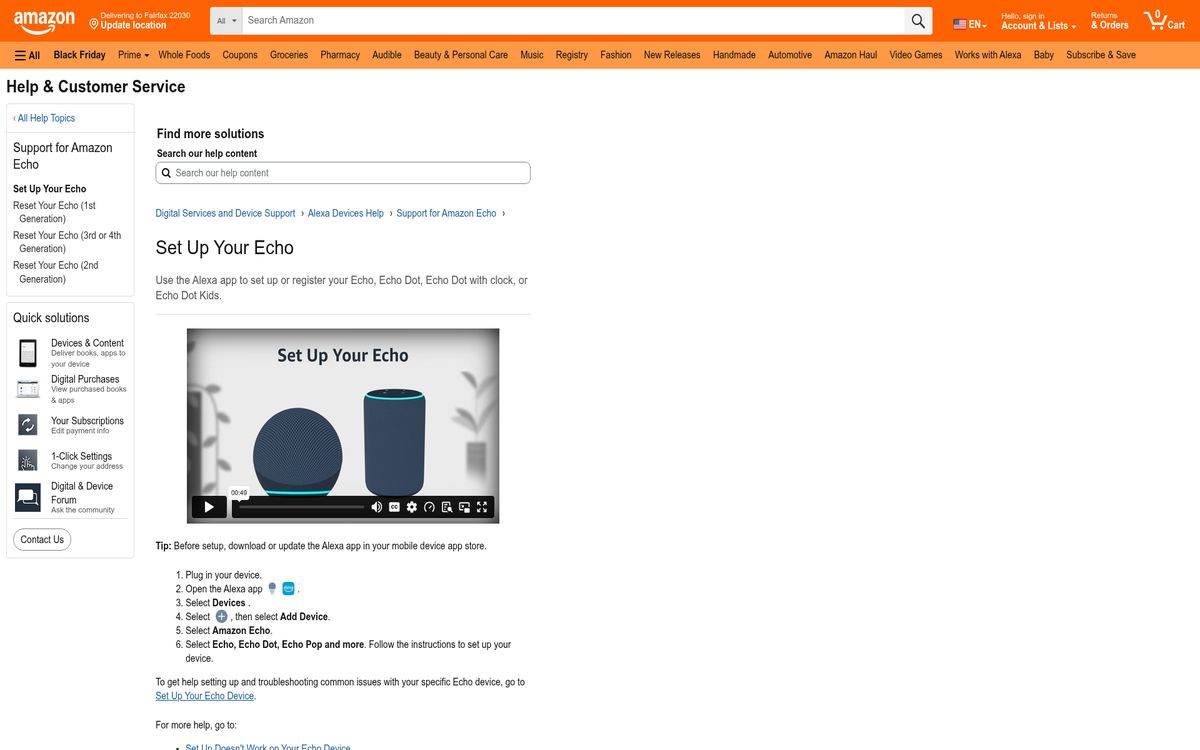
You are connecting the speaker or display to your wireless network, rather than connecting the voice assistant as a separate piece of hardware. The correct procedure depends on whether the device is new, already registered, or equipped with a screen.
Get the network details ready
Begin with the actual network password, not the password for your shopping account or the router's administrator interface. These credentials serve different purposes.
Before setup, make sure you have:
- A powered-on device and its appropriate power adapter.
- Your phone with the current app installed.
- Access to the account that will manage the device.
- The intended wireless network's name and password.
- A working internet connection on another device.
If you do not know the wireless password, use our guide to finding your Wi-Fi password before starting. Repeatedly guessing credentials creates confusion without telling you whether the speaker has another problem.
Keep the phone and speaker near the router during the initial attempt. After setup succeeds, move the speaker to its intended location and test it again. This separates an account or password problem from a weak-signal problem.
Also confirm that you are allowed to add devices to the network. A workplace or managed building network may have restrictions you cannot change yourself.
Set up a new Echo
For a new speaker, use Add Device, rather than looking for a saved-network setting on a device that has not been registered yet.
Amazon's documented setup sequence is:
- Plug in the speaker.
- Open the app.
- Select Devices.
- Select the plus control, then Add Device.
- Select Amazon Echo.
- Select Echo, Echo Dot, Echo Pop and more.
- Follow the instructions for your specific model.
Do not assume every generation enters setup mode through the same button combination. Let the app identify the hardware and provide its model-specific prompts.
When asked to choose a wireless network, select your home network and enter its password carefully. Similar network names can be easy to confuse, especially in an apartment building.
Once setup finishes, try a basic request that needs internet access. Then confirm that the device appears under the expected account. If someone else in the household completed setup, check whose account now manages it before trying to register it again.
Change an existing speaker's Wi-Fi network
For a speaker that is already registered, Amazon's network-update instructions provide a different route.
Use the existing device entry when changing routers, updating a password, or moving to another home:
- Open the app.
- Select Devices.
- Select the speaker.
- Open Device Settings.
- Select Change or remove a Wi-Fi network.
- Choose a previously connected network, or select Join another Wi-Fi Network.
- Follow the remaining prompts.
Have the new credentials ready before beginning. If you recently changed the router's wireless password, the old saved password will no longer authenticate the device.
Changing the network is not the same as deleting the device from your account. Avoid removing its registration merely because it cannot reach the old network.
If several household devices stopped working after a router change, update their network connections methodically. Keep a checklist so you can distinguish devices already migrated from devices still trying to join the previous network.
Handle screens and network compatibility carefully
A screen-equipped model follows its own workflow. Amazon's network-update page directs owners of those devices to change Wi-Fi settings on the device itself rather than using the ordinary speaker procedure.
Use the instructions linked from that page for your exact hardware. Avoid copying a screen gesture or reset-button sequence from a different generation.
Amazon documents support for common home Wi-Fi networks and states that these devices cannot connect to ad-hoc, peer-to-peer networks. Check your model's specifications before changing router bands or security settings.
Do not weaken the entire network's security as a first troubleshooting step. A connection failure can result from an incorrect password, weak coverage, or incomplete setup rather than an incompatible security mode.
If your router presents separate network names for different bands, keep track of which one you select. If it combines bands under one name, do not assume you must split them simply to complete setup. Follow model-specific vendor guidance before changing a working household network.
Troubleshoot connection failures in a useful order
Amazon's setup troubleshooting guidance recommends checking the app, restarting, and reserving a reset for later.
Use one change per attempt so you know which action helped:
- Confirm another device can use the same network.
- Check that the app is current.
- Recheck the selected network and its password.
- Retry with the speaker nearer the router.
- Restart the speaker using its model's instructions.
- Retry setup or the network-change process.
- Consider a model-specific reset only after simpler checks fail.
If multiple devices cannot access the internet, investigate the router or provider connection rather than repeatedly reconfiguring one speaker.
A phone hotspot can help isolate a home-network problem, and Amazon lists it as a setup troubleshooting option. Treat that as a diagnostic test, not proof that the speaker should permanently depend on your phone. Mobile-data availability and hotspot behavior are separate considerations.
Finish setup and keep recovery simple
After the speaker connects, perform a test in its final location. A successful setup beside the router does not guarantee reliable service behind a cabinet or at the far end of the house.
Try several ordinary requests and check any connected routines you depend on. If problems appear only after moving the device, focus on coverage rather than account registration.
Document the network you used and keep its password in a secure place. If you manage several smart devices, update them in a planned order after future router changes rather than resetting everything together.
For recurring household dropouts, see how to keep smart devices working when Wi-Fi drops.
A working connection should survive ordinary daily use without repeated setup. If it does not, collect the model name, error message, and whether other devices disconnect too. Those details make the next support conversation more useful than another unexplained factory reset.
Reach designers & developers at work
Sponsored posts, links and listings, each clearly labelled as sponsored. One sponsor per placement.
Become a sponsor