
On this page
The simplest answer to how to connect ps5 controller to pc is to connect the controller with a USB data cable, or pair it wirelessly through your computer's Bluetooth settings.
The DualSense wireless controller supports compatible computer games through either connection, but individual features depend on the game and connection method.
Getting connected is only the first step. A controller can be paired successfully while a particular game still needs its controller settings adjusted. Test one game at a time so you can distinguish a connection problem from a compatibility issue.
Choose USB or Bluetooth first
Start with USB for the cleanest baseline. It avoids wireless pairing and lets you establish whether the controller, cable, and game work together before adding another variable.
You need a cable with USB-C at the controller end and a compatible connector at the computer end. The cable must support data, not just charging. A controller lighting up is not proof that the cable carries game input.
Wireless play requires Bluetooth support on the computer. If your desktop does not include it, a compatible adapter may be necessary. Do not buy a replacement controller simply because the computer has no wireless hardware.
Sony lists supported operating systems on its compatibility page. Its documentation also makes an important distinction: pairing support does not guarantee every controller feature in every game. Check a game's own controller information if advanced feedback matters more than basic movement and button input.
Connect with a USB data cable
For the first test, use a direct computer connection rather than an unpowered hub or an unfamiliar adapter chain.
- Turn on the computer and let it finish starting.
- Connect the cable to the controller's USB-C port.
- Connect the other end to a compatible computer port.
- Allow the computer to recognize the device.
- Open a game that supports controllers.
- Check movement, camera control, and the main action buttons.
You do not need to put the controller into Bluetooth pairing mode for a wired connection. If the game does not respond, first try another known data-capable cable and another computer port.
Avoid making several changes at once. For example, changing the cable, installing extra input software, and changing game settings together makes it difficult to identify the actual fix.
If the controller works in one game but not another, the physical USB connection is probably not the central problem. Move on to the second game's controller-support settings.
Pair wirelessly through the computer
Microsoft's Bluetooth pairing instructions explain how to enable wireless discovery and add devices on a Windows computer.
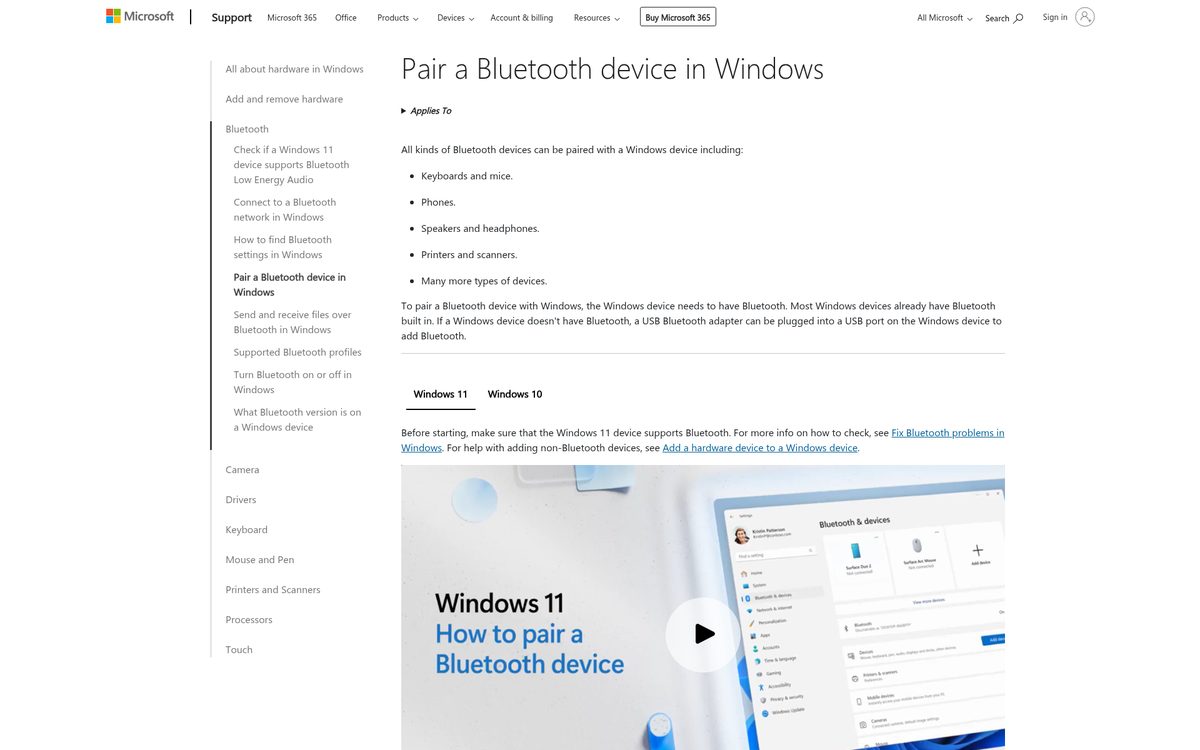
The controller must enter pairing mode, not simply turn on:
- Disconnect its USB cable.
- Make sure its player indicator is off. If necessary, hold the PS button until it turns off.
- Hold the create button, then hold the PS button until the light bar flashes.
- Open the computer's Bluetooth device-addition controls.
- Select the controller when it appears.
- Complete pairing and test it in a compatible game.
On Windows 11, Bluetooth is under Settings > Bluetooth & devices. Make sure Bluetooth is switched on before looking for the controller.
If discovery fails, move the controller closer and repeat pairing mode. A controller that reconnects to a previously used device may not remain available to the computer. Temporarily turning off that other device can help isolate the situation without resetting everything.
Configure Steam Input when a game needs it
Steam Input provides controller configuration and input translation for games running through the platform.
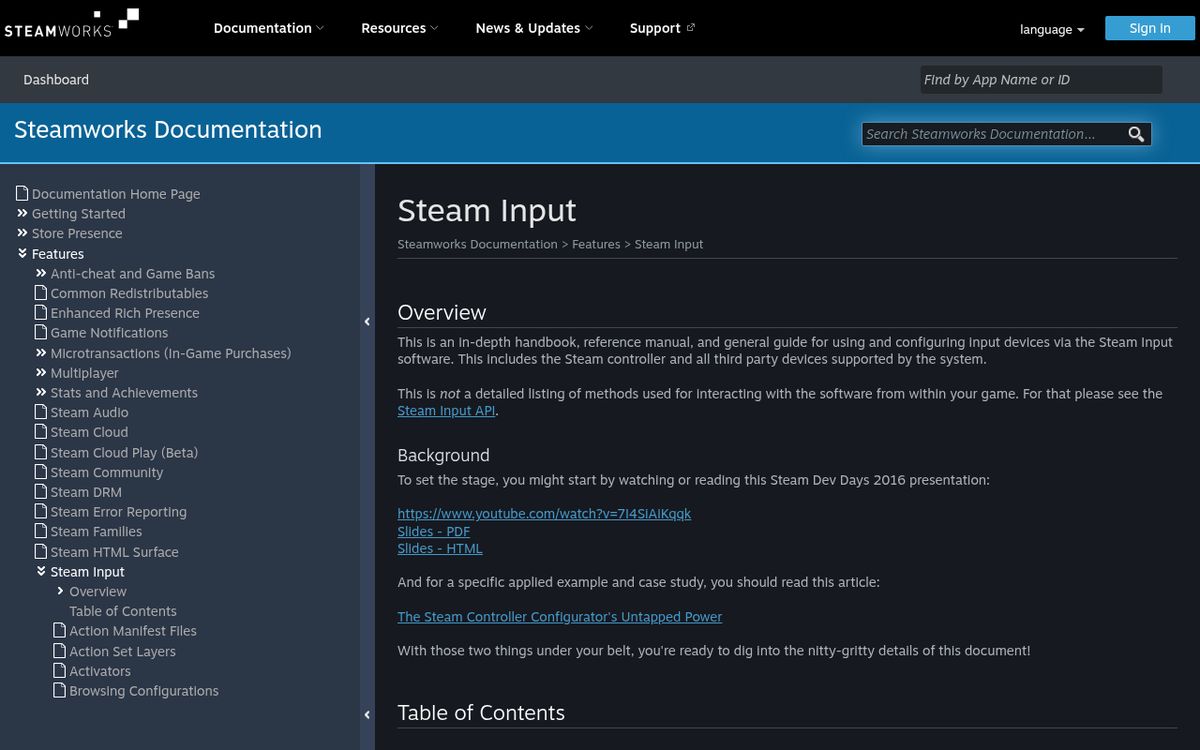
Use one input-handling approach at a time. A game with native controller support may behave differently when an additional translation layer is enabled, so more software is not automatically better.
Start with this sequence:
- Connect the controller before launching the game.
- Open the platform's controller settings and confirm that it detects the device.
- Review the game's controller configuration.
- Use the available input-support option if the game needs translation.
- Relaunch the game after changing its controller handling.
- Test a simple menu before starting a session.
Exact labels can change with client updates, so use the current controller interface rather than an old screenshot showing unrelated options.
If buttons activate twice, check for overlapping controller utilities or multiple input layers. If the game displays a different controller's button symbols, that can reflect its input implementation rather than a failed connection. Successful input and matching on-screen symbols are separate questions.
Update firmware and understand feature limits
Use PlayStation Accessories to check and update controller firmware on a supported computer.
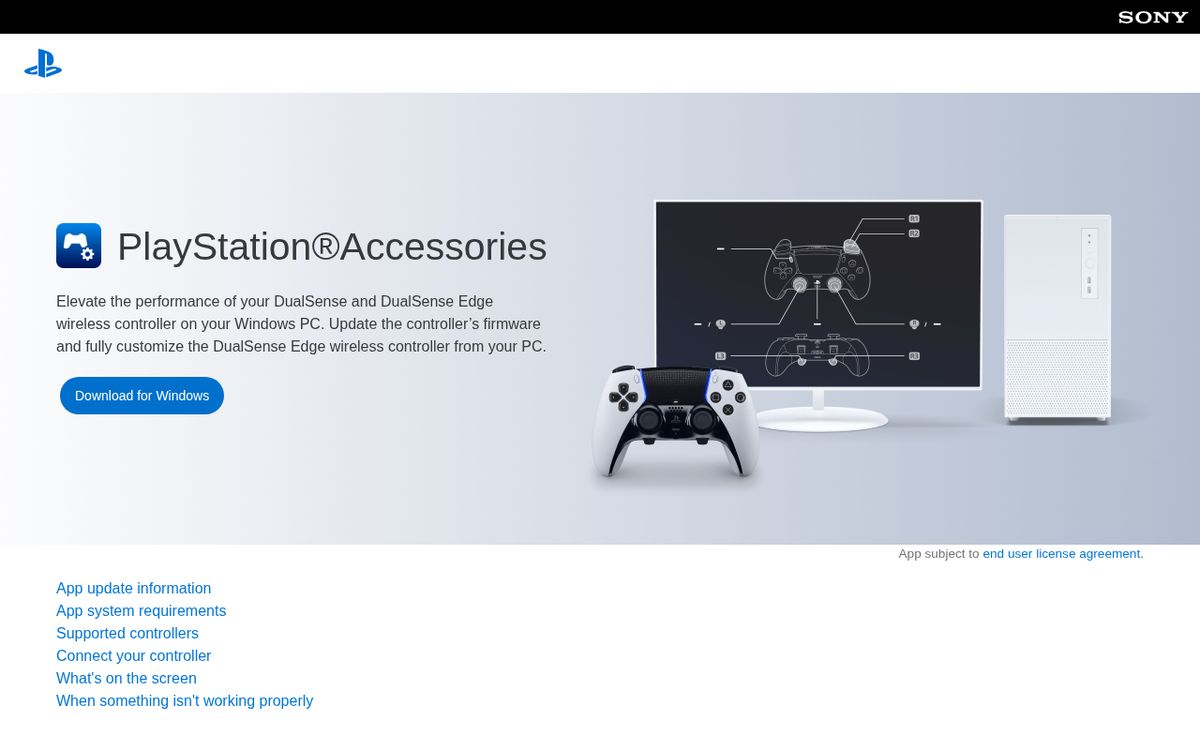
A firmware update is separate from pairing. The update app maintains controller software; it does not guarantee that every game will support every function.
- Download the app from the official page.
- Install and open it.
- Connect the controller using a supported method.
- Check whether an Update option appears.
- Follow the app's instructions.
- Do not disconnect the controller or turn off the computer during the update.
Sony's app supports firmware updates for the standard controller, while its deeper customization tools apply to the Edge model.
For gameplay, Sony states that haptic feedback requires a USB connection on PC and support from the game. Adaptive triggers also depend on game support. The headset jack requires a wired connection on PC. Basic Bluetooth gameplay should not be confused with feature-for-feature console parity.
Keep a repeatable troubleshooting order
Use connection, detection, then game support as your diagnostic order. That prevents a working controller from being mistaken for faulty hardware.
First establish a wired connection with a known data cable. Next confirm that your gaming software detects it. Then test a compatible title before adjusting an individual game's configuration. Finally, return to Bluetooth if wireless play is your goal.
Keep the controller charged for wireless sessions, and avoid troubleshooting with several controller-management programs running together. Record the configuration that works for games you play regularly rather than changing global settings before every session.
If you also use the controller with its console, follow Sony's reconnection instructions when switching back. For broader hardware choices, see our console buying comparison.
The most dependable setup is the simplest one that provides the controls and feedback your particular game supports.
Reach designers & developers at work
Sponsored posts, links and listings, each clearly labelled as sponsored. One sponsor per placement.
Become a sponsor