
On this page
The simplest answer to how to embed a youtube video is to open the video's Share menu, choose Embed, and paste the supplied code into your website's HTML or supported embed block.
YouTube's embedding instructions document the desktop workflow and explain restrictions that can prevent playback.
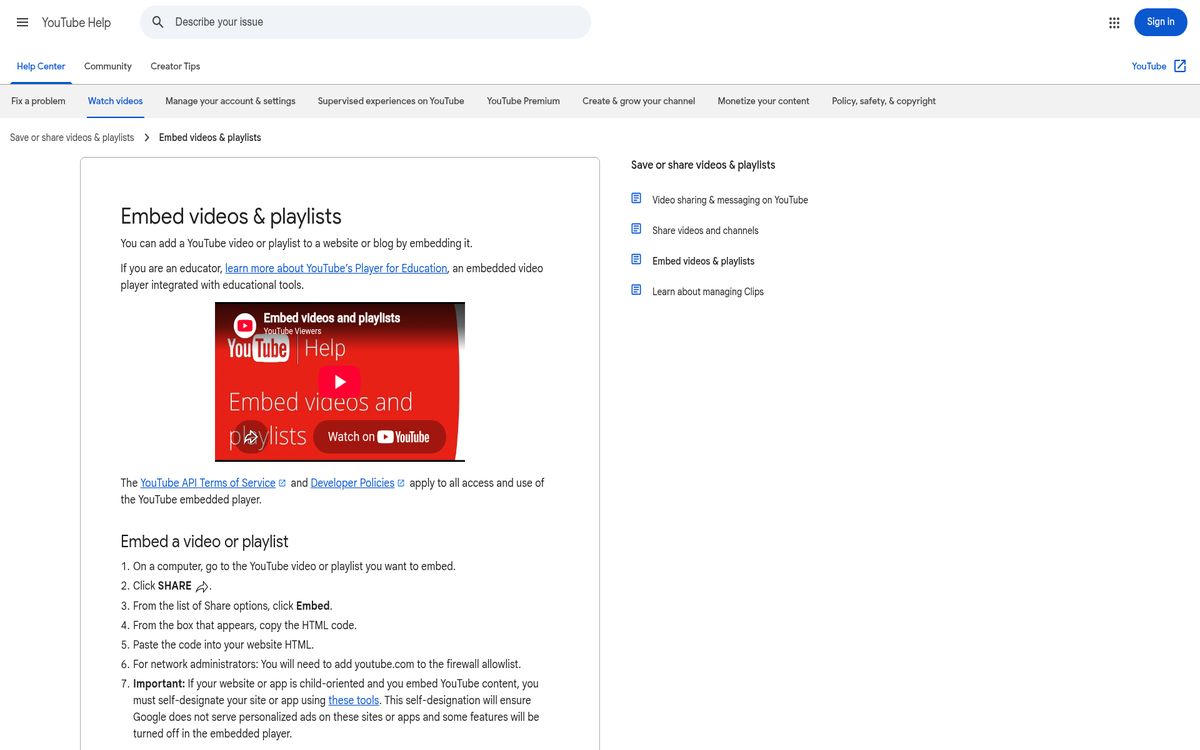
An embed displays the hosted player inside your page; it does not copy the video into your own hosting account. Availability still depends on the original video, its owner, and the viewer's access.
Copy the official embed code
Start with the supplied iframe, rather than converting a normal watch address into HTML by guesswork.
- On a computer, open the video you want to display.
- Select Share.
- Select Embed.
- Review the available options.
- Copy the generated HTML.
- Paste it into an HTML-capable area of your website.
- Save and preview the page.
A normal paragraph block may display the code as text instead of creating a player. Use your platform's supported HTML or embed component when pasting raw markup.
If embedding is unavailable, the video's owner may have disabled it. Age-restricted videos also cannot play on most third-party websites and may redirect viewers to the original service.
Do not assume that permission to embed means you can download, edit, or reupload the content. Keep the surrounding text accurate and avoid presenting another creator's work as your own.
Make the player responsive with CSS
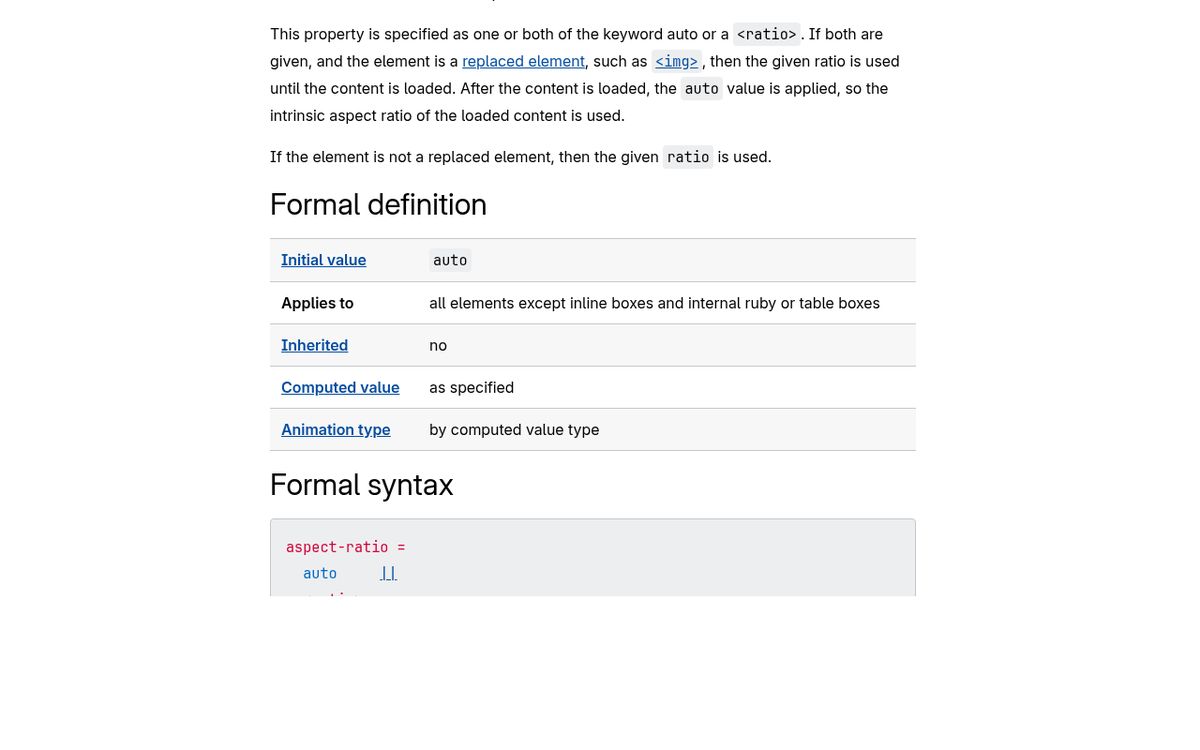
Use an aspect-ratio wrapper so the player fits its container without relying on a fixed desktop width. The CSS aspect-ratio documentation explains how browsers preserve a preferred width-to-height relationship.
This HTML and stylesheet form a practical starting point:
<div class="video-embed">
<iframe
  src="https://www.youtube.com/embed/VIDEO_ID"
  title="A descriptive title for this video"
  loading="lazy"
  allow="accelerometer; autoplay; clipboard-write; encrypted-media; gyroscope; picture-in-picture; web-share"
  allowfullscreen>
</iframe>
</div>

<style>
.video-embed {
  width: 100%;
  aspect-ratio: 16 / 9;
}

.video-embed iframe {
  display: block;
  width: 100%;
  height: 100%;
  border: 0;
}
</style>
Replace VIDEO_ID with the identifier from the copied embed URL. Replace the title with a meaningful description, not simply “video.”
The wrapper controls the shape while the iframe fills the available space. If your site separates styles from page markup, move the CSS into its stylesheet.
Use the Aspect Ratio Calculator if you need to check dimensions for another layout.
Add only the player parameters you need
The official player-parameter reference documents supported options and their limitations.
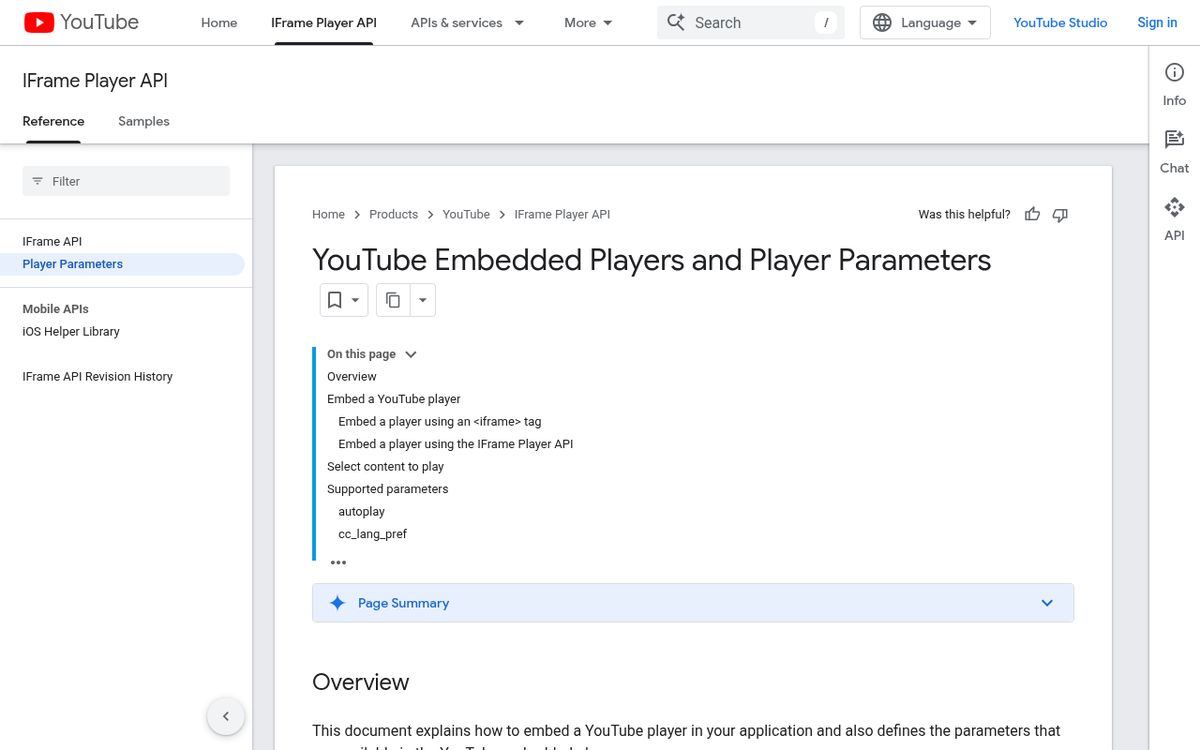
Keep parameter changes deliberate. Start with a working embed before adding playback behavior.
Useful examples include:
- start=60 requests a start position 60 seconds into the video.
- controls=0 hides player controls.
- autoplay=1 requests automatic playback.
- playsinline=1 requests inline playback where supported.
- rel=0 limits related-video behavior rather than removing recommendations entirely.
The first parameter follows a question mark in the embed URL. Additional parameters use ampersands. In HTML source, encode those ampersands as &.
For a single-video loop, the official reference documents using loop=1 together with a playlist parameter containing that same video ID.
Autoplay is a request, not a guarantee: browser playback policies can prevent it. Avoid building an essential interaction around automatic playback with sound.
Do not reuse obsolete snippets promising to remove every recommendation or every trace of player branding. Check the current reference before depending on a parameter copied from an old tutorial.
Use privacy-enhanced mode accurately
For privacy-enhanced embedding, replace the embed hostname with www.youtube-nocookie.com, retaining the embed path and video ID.
For example, the source becomes https://www.youtube-nocookie.com/embed/VIDEO_ID rather than the ordinary player hostname.
The official embedding guide explains that views through this mode are not used to personalize the viewer's subsequent experience on the video service. If ads appear, they are non-personalized under that mode's documented behavior.
That is not the same as guaranteeing that the player makes no network requests or that your entire website satisfies every privacy law. Do not label the result “tracking-free” or treat the hostname change as a replacement for reviewing your site's consent requirements.
For stricter loading control, consider showing a description and a user-activated placeholder before loading third-party content. That requires additional implementation and testing beyond simply changing the iframe source.
After modifying the hostname, test the actual published page. A platform may transform pasted URLs or replace supplied markup with its own player component.
Prefer native blocks in website builders
Use the platform's supported video component when you do not need custom HTML. It is usually easier to maintain than an iframe pasted into an unsuitable text field.
WordPress's video embed block accepts the normal video URL.
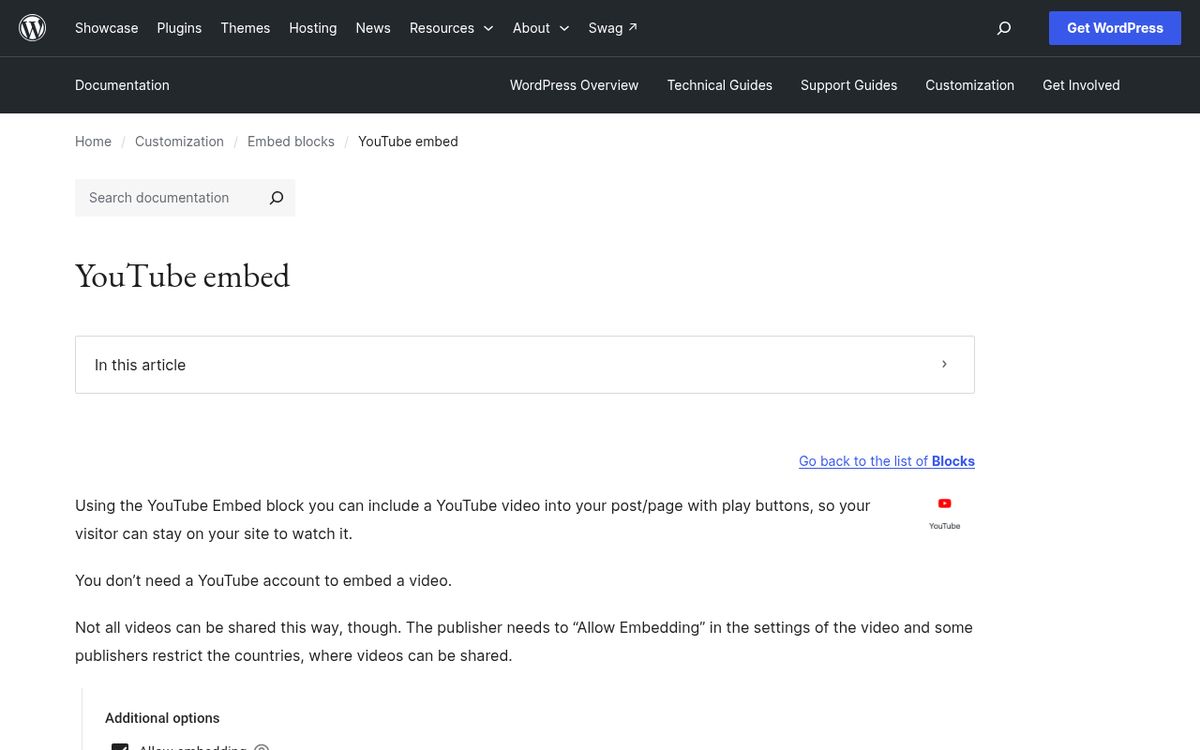
- Add the appropriate video embed block.
- Paste the video's URL.
- Select Embed.
- Preview the result and save the page.
Squarespace's third-party video guidance is the official reference for its supported embedding options.
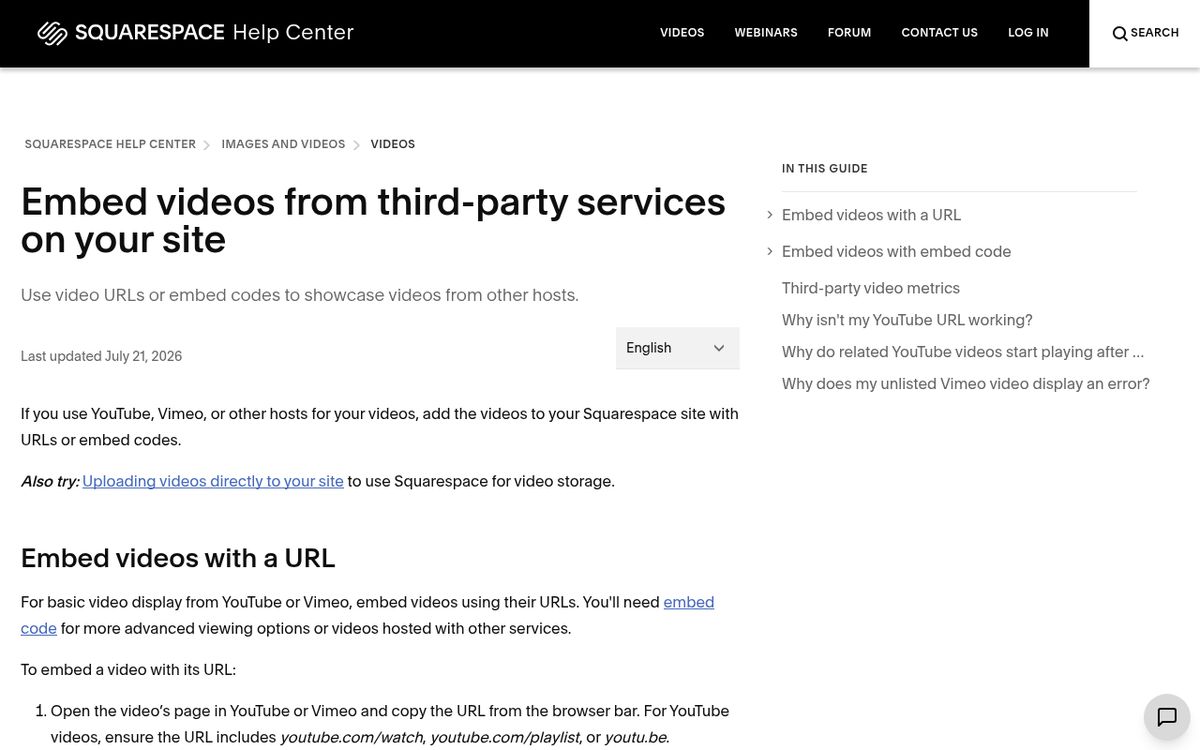
Use the current video or embed controls in your editor and confirm whether they accept a video URL or raw code. Those inputs are not interchangeable.
Wix's single-video instructions describe adding a video player through the editor.
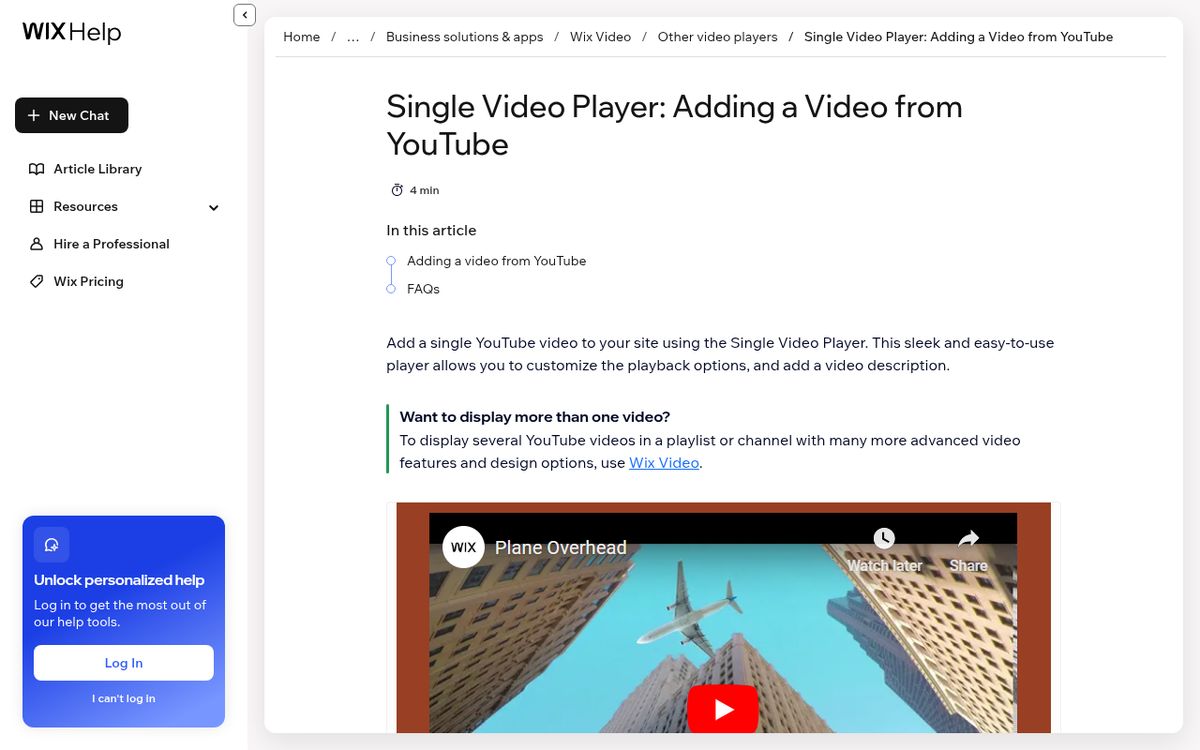
In its documented workflow, open Add Elements, choose Video and Music, then Single Video Players. Add the player, select Change Video, and paste the video's web address. Preview before publishing.
Test the published page, not just the editor
Finish with a real playback check on both a narrow screen and a desktop-sized window. Editor previews do not always reproduce the published page's behavior.
Confirm that the player fits without horizontal scrolling, that keyboard users can reach it, and that the iframe has a descriptive title. Check that surrounding text explains why the video is useful rather than leaving an unexplained rectangle in the page.
If playback fails, open the original video directly. It may have been removed, restricted, or changed by its owner. Also review any site security policy or content blocker that could prevent third-party frames from loading.
For video publishing context, see our gameplay streaming guide.
Keep the implementation simple: copy the official embed, make its container responsive, add only necessary options, and verify that visitors can actually watch it after publication.
Reach designers & developers at work
Sponsored posts, links and listings, each clearly labelled as sponsored. One sponsor per placement.
Become a sponsor