
On this page
To learn how to reset router settings safely, first distinguish a restart, which preserves your configuration, from a factory reset, which erases your custom settings.
A restart is usually the better first response to a connection that suddenly stops working. A factory reset makes sense when you are transferring ownership, cannot recover access, or have been instructed to rebuild the network by support. Neither action repairs an internet outage outside your home.
Decide whether you need a restart or reset
The most important distinction is keeping versus erasing settings. Restarting temporarily interrupts service but normally leaves your network name, password, and configuration intact. Factory resetting returns the equipment to its original configuration and requires setup afterward.
Before touching any buttons, check whether the problem affects one device or the whole household. If only one laptop is offline while other devices work, reconnect that laptop first. Resetting the router would disrupt everyone without necessarily addressing the cause.
Check these details before proceeding:
- Whether your provider reports a service outage.
- Whether the modem or gateway has power.
- Whether network cables are securely connected.
- Whether you have separate modem and router units.
- Whether anyone depends on the connection for calls or monitoring.
For problems limited to distant rooms, review where to put your router for the best signal. Erasing settings will not change the physical reach of a poorly positioned router.
Restart without erasing your network
Use the equipment's documented restart procedure, not a guessed button press. A small recessed button labeled Reset often performs a destructive reset when held.
For rented equipment, start with your provider's troubleshooting instructions. Xfinity's gateway restart guide recommends a network test before restarting and documents the restart option in its app.
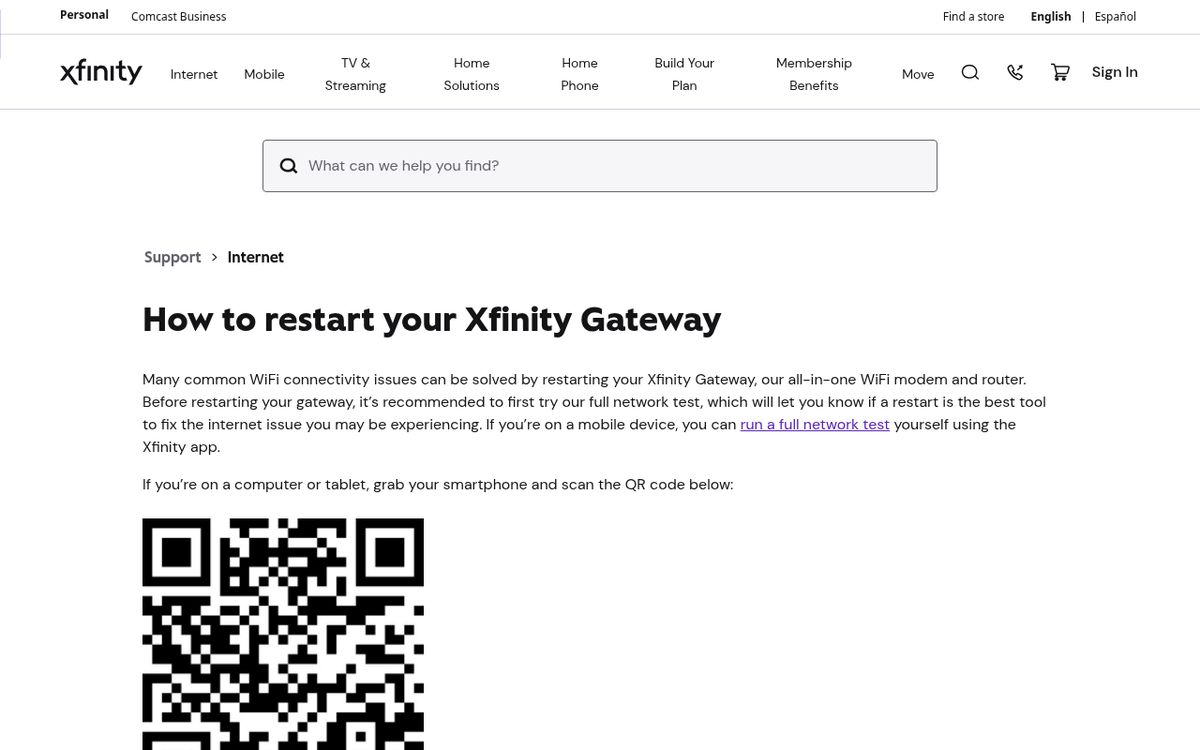
For a rented gateway, its documented app sequence is:
- Open the app and locate the WiFi icon.
- Select Troubleshoot.
- Select Restart your Gateway.
- Leave the gateway connected while it restarts.
- Test the connection after it returns online.
Xfinity says this process can take up to 12 minutes. Its home-phone service, including emergency calling, is unavailable during the restart. Plan around any service that relies on that gateway.
If you restart manually, follow the manufacturer's power-disconnection instructions, including any guidance for backup batteries. Do not repeatedly unplug equipment while it is still starting.
Follow your provider's gateway instructions
AT&T's restart and reset instructions clearly separate the two operations and explain the supported app procedure.
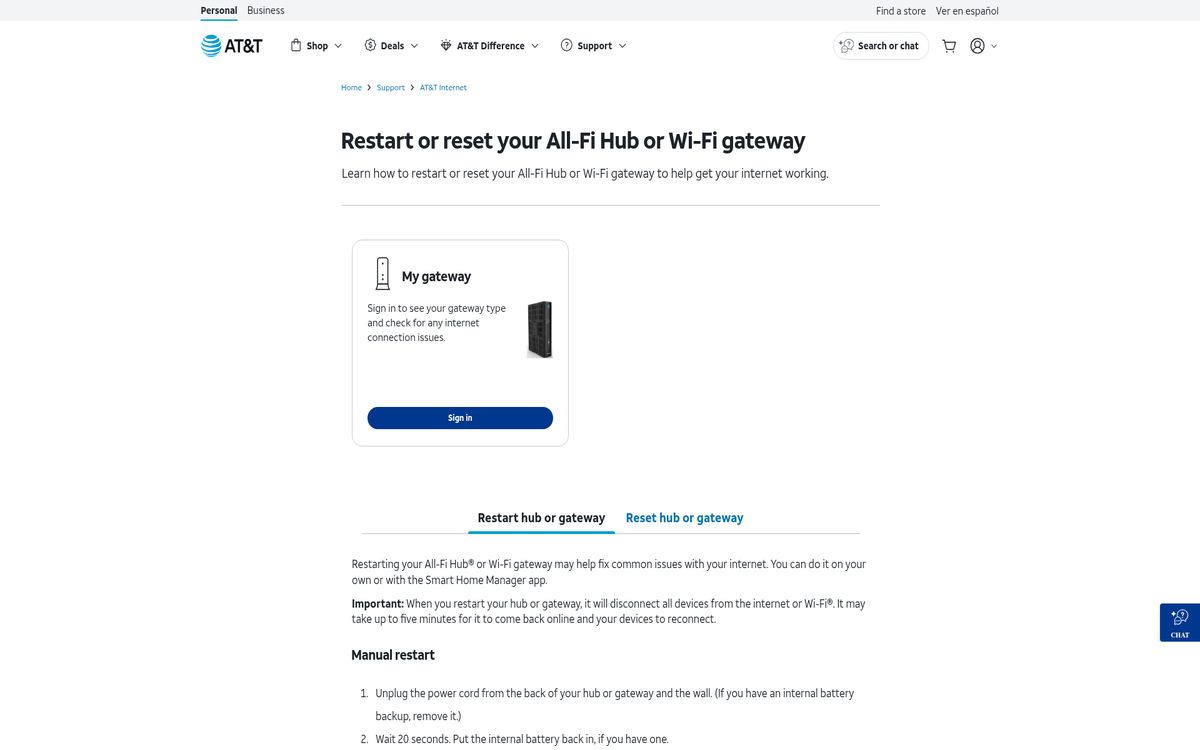
For compatible gateways, Smart Home Manager provides a restart without a factory reset:
- Open the app.
- Select Network.
- Scroll to Restart Wi-Fi.
- Select Restart again.
- Wait for the gateway and connected devices to recover.
AT&T's manual restart instructions specify disconnecting power, removing an internal backup battery if present, waiting 20 seconds, and reconnecting power. It says reconnection may take up to five minutes.
Do not apply those timings or battery instructions to unrelated hardware. A provider's combined gateway can behave differently from a standalone router, and models within the same provider's lineup may differ.
If support asks you to “reset” equipment, clarify whether they mean restart or restore factory settings. That single question can prevent an unnecessary network rebuild, especially when custom configuration is involved.
Prepare before a factory reset
Treat a factory reset as starting the network over. Record the settings you will need before removing them, and make sure you can access setup instructions without your home connection.
Save the following information somewhere secure:
- Your current wireless network name and password.
- Router administrator credentials, if available.
- Custom internet connection settings supplied by your provider.
- Guest-network settings and parental restrictions.
- Port-forwarding rules and address reservations.
- Details of any additional mesh units.
A reset may also affect custom DNS settings and other network rules. The exact list depends on the equipment. Do not assume every router has a backup-and-restore feature or that a backup will transfer between different models.
For the AT&T equipment covered by its guide, factory reset uses the red Reset button held for at least 15 seconds. That is not a universal router instruction.
Afterward, expect to configure the gateway again. If your only goal is a different wireless password, use the network-name and password instructions instead of erasing everything.
Handle mesh equipment through its own documentation
Mesh systems need model-specific reset instructions because removing the main unit can take the entire network offline. Eero's reboot and reset guide distinguishes restarting, soft resetting, and hard resetting.
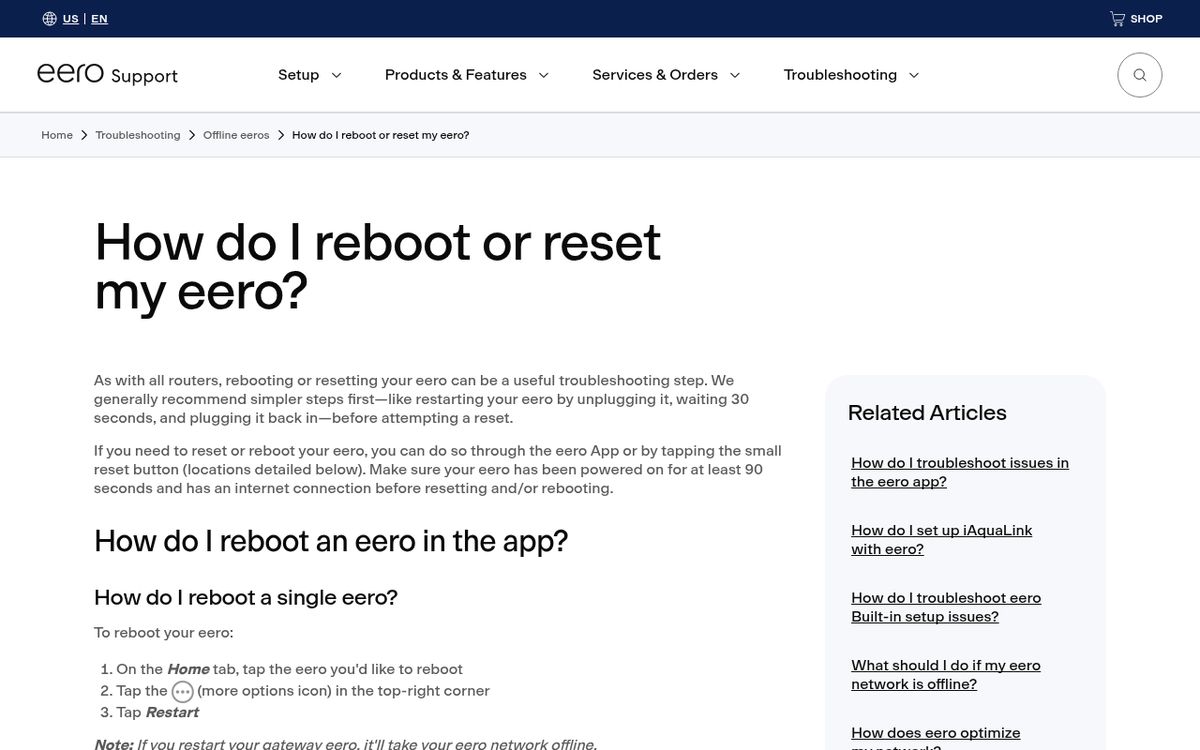
Its app can restart an individual unit. Removing a unit from the app, however, restores that unit to factory defaults. Removing the gateway unit interrupts the network. Read the confirmation carefully rather than treating Remove as another word for Restart.
Google Nest Wifi's factory-reset guidance likewise warns that resetting erases current settings and requires setting up the router and points again.
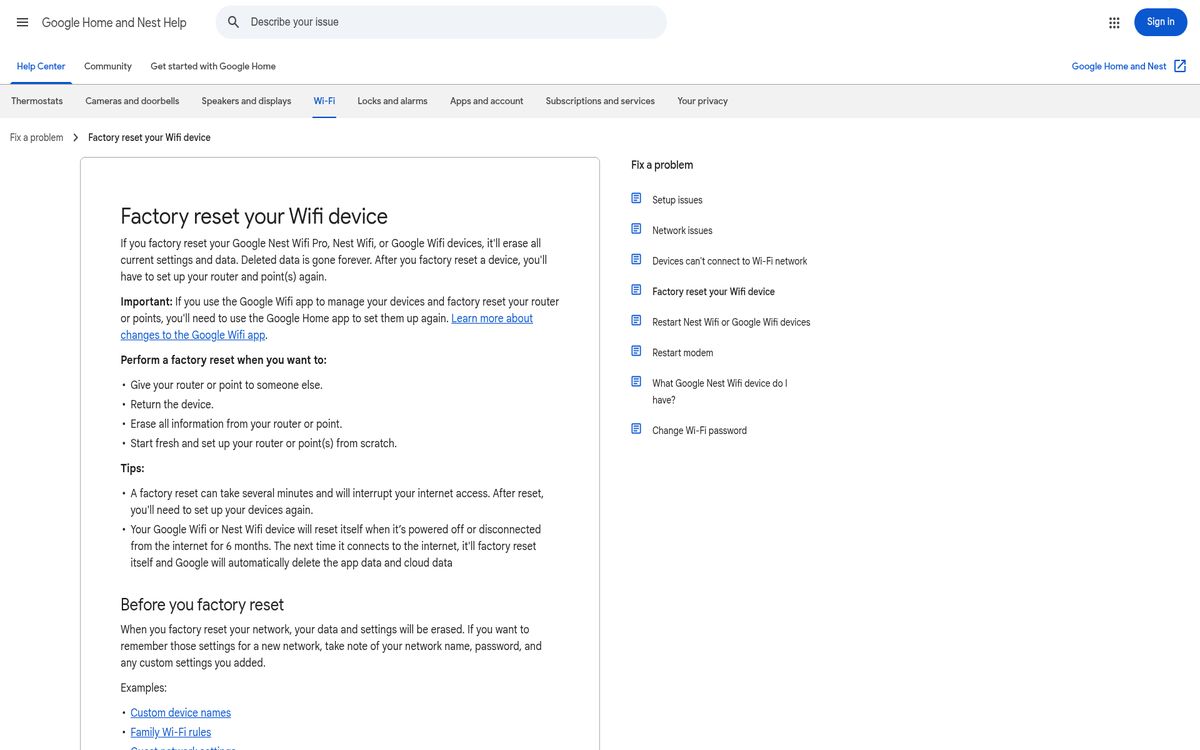
Before resetting a mesh system:
- Identify the main router and additional points.
- Confirm which unit has the problem.
- Read the instructions for that exact model.
- Check whether the action removes account or cloud data.
- Reset only after you have the information needed for setup.
Reconnect and check before changing anything else
After recovery, use a simple connection test rather than immediately changing more settings. Connect one nearby device and open several websites. Then check a second device and, if relevant, a device farther away.
If you restored the previous network name and password, some devices may reconnect automatically. Others may need their saved connection removed and added again. Recheck printers, cameras, and other devices that do not have an obvious connection-status screen.
If every device remains offline, contact your provider with the equipment model, indicator-light behavior, and troubleshooting already completed. Repeating factory resets can create more setup work without solving the underlying failure.
Keep the working configuration documented securely. The practical default is straightforward: restart for a temporary fault, investigate recurring problems, and reserve factory reset for situations where you are prepared to rebuild the network.
Reach designers & developers at work
Sponsored posts, links and listings, each clearly labelled as sponsored. One sponsor per placement.
Become a sponsor