
On this page
The easiest answer to how to transfer data from iphone to iphone is to place the phones together and use Quick Start, or restore a recent cloud or computer backup during setup.
Choose a method before starting
Apple’s Quick Start is usually the simplest choice when both phones work and are available together. It helps configure the new phone and offers choices for moving your information.
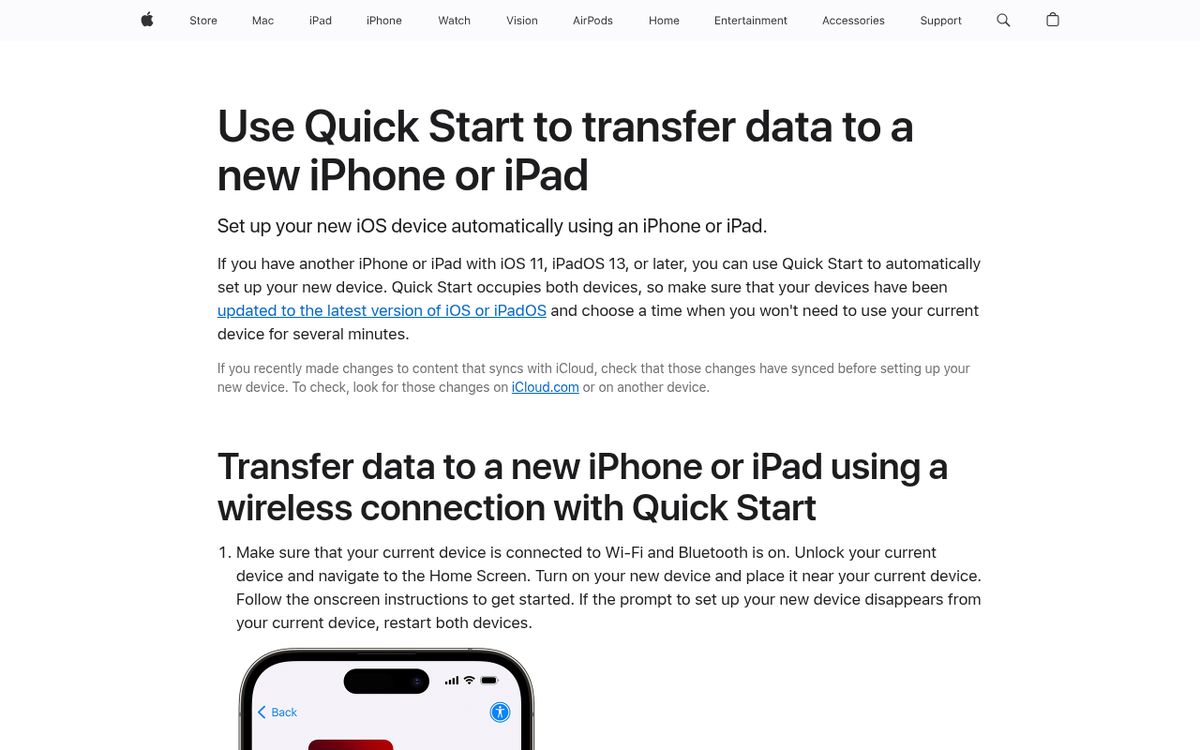
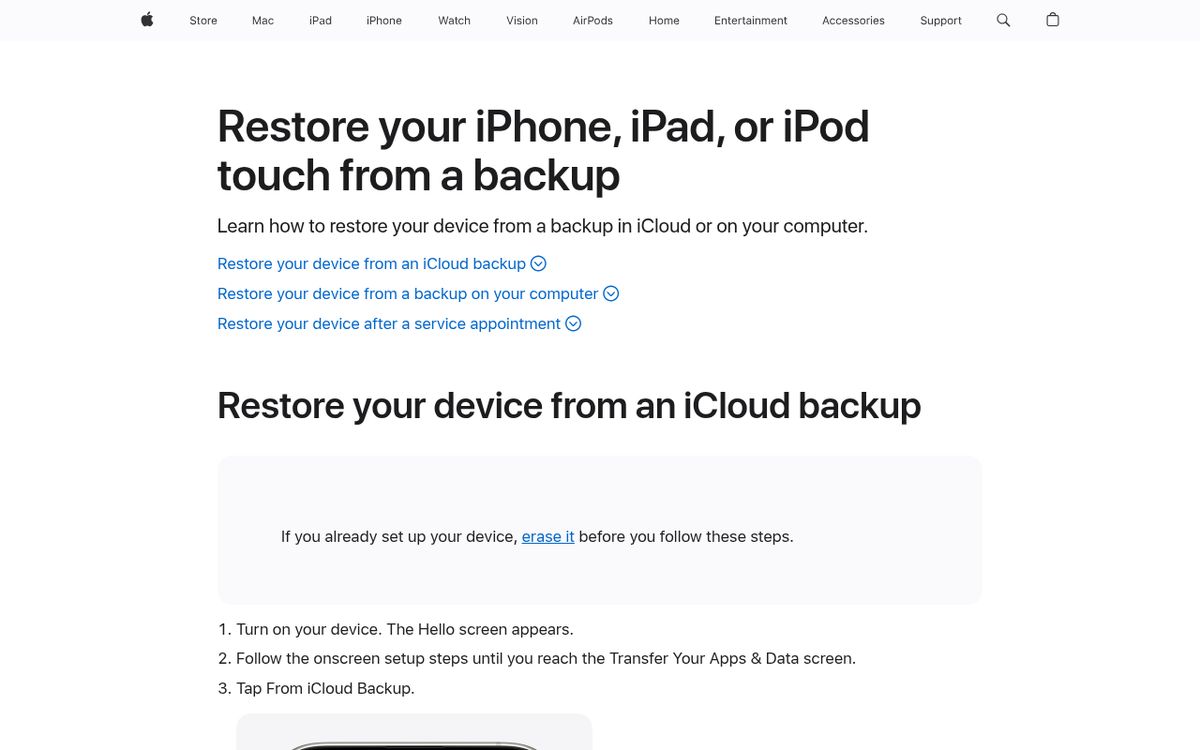
A backup is useful when the old phone is unavailable, damaged, or already erased. Apple documents restoring through iCloud or a computer backup.
The essential preparation is keep the old phone unchanged until the new one is checked. A successful setup screen is not proof that every photo, document, and important app is ready.
Before starting:
- Have your account credentials and old phone’s passcode available.
- Connect both phones to power.
- Confirm the new phone has enough capacity for your information.
- Make a current backup when possible.
- Allow time when you do not need either phone urgently.
If the destination is already set up, restoring a complete backup generally requires erasing it first. Save anything created only on that destination before restarting setup.
Transfer directly with Quick Start
For wireless setup, keep the old phone connected to Wi-Fi and turn Bluetooth on. Place the devices near each other and follow the setup prompt.
- Unlock the old phone.
- Turn on the new phone and place it nearby.
- Follow the setup instructions displayed on both devices.
- Connect the new phone to the requested network.
- Complete cellular activation if prompted.
- Set up biometric authentication.
- Choose the direct-transfer option when asked how to move data.
- Keep the phones close together and connected to power.
With direct device transfer, you must wait until migration finishes on both devices before using them normally.
If the setup prompt disappears, Apple recommends restarting both devices. Avoid repeatedly moving them apart or switching networks while the transfer is active.
Transfer duration depends on the amount of information and network conditions. There is no reliable universal promise that a migration takes a particular number of minutes.
The setup flow on iOS 18 and iOS 26 may present slightly different screens. Follow the option describing a transfer from the previous phone rather than relying on one screenshot’s exact position.
Restore an iCloud backup
A cloud restore is useful when you have a recent backup but do not want both phones occupied throughout a direct transfer. Apps and other content can continue downloading after initial setup.
Create a fresh backup on the old phone before switching when possible:
- Open Settings.
- Tap your name.
- Tap iCloud.
- Tap iCloud Backup.
- Tap Back Up Now.
- Wait for completion and confirm the backup date.
On the new or newly erased phone:
- Begin at the Hello screen.
- Follow setup to Transfer Your Apps & Data.
- Choose From iCloud Backup.
- Sign in.
- Review backup dates and sizes.
- Select the appropriate backup.
- Keep Wi-Fi and power connected while restoration proceeds.
The key is choose the correct backup date. An older backup can omit recent device-only changes even when the restore itself succeeds.
Information synchronized separately through the cloud may continue appearing afterward. Do not immediately conclude that missing thumbnails or unfinished app downloads mean the backup was empty.
Restore from a Mac or Windows PC
Apple supports computer-based transfers using the appropriate device-management application for your computer.
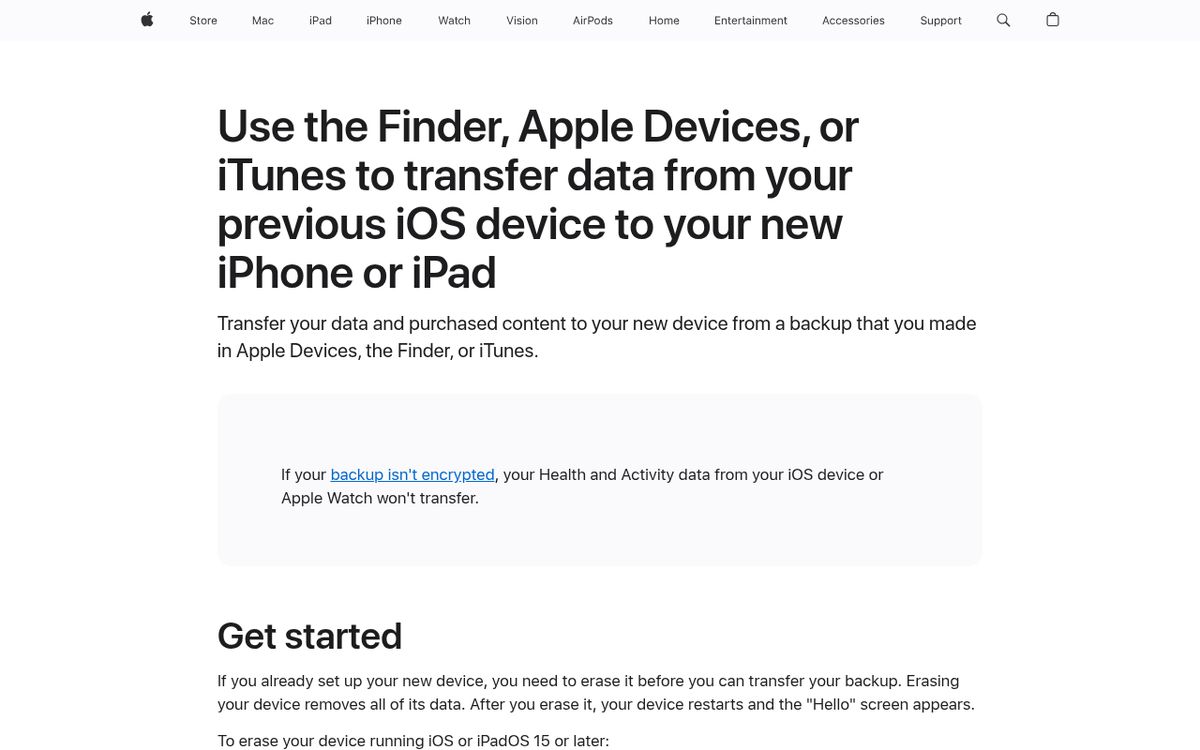
On a recent Mac, use Finder. On a supported Windows PC, use Apple Devices. Older configurations may use the legacy application identified in Apple’s instructions.
First, connect the old phone and create a backup using the computer’s device-management window. Select local backup encryption if you need the additional data it preserves.
- Turn on the new or newly erased phone.
- Follow setup until the computer-restore choice appears.
- Connect it to the computer containing the backup.
- Open the appropriate device-management window.
- Select the new phone.
- Choose Restore Backup.
- Select the correct dated backup.
- Enter the encryption password if requested.
- Keep the phone connected through restoration and synchronization.
Use Restore Backup, not a factory restore, when your goal is recovering saved data. Those actions are not interchangeable.
A backup made with newer software may require updating the destination before restoration. Follow Apple’s update instructions rather than repeatedly retrying an incompatible backup.
Understand encryption and what needs checking
Apple explains that encrypted computer backups can preserve additional categories such as saved passwords, Wi-Fi settings, and health information.
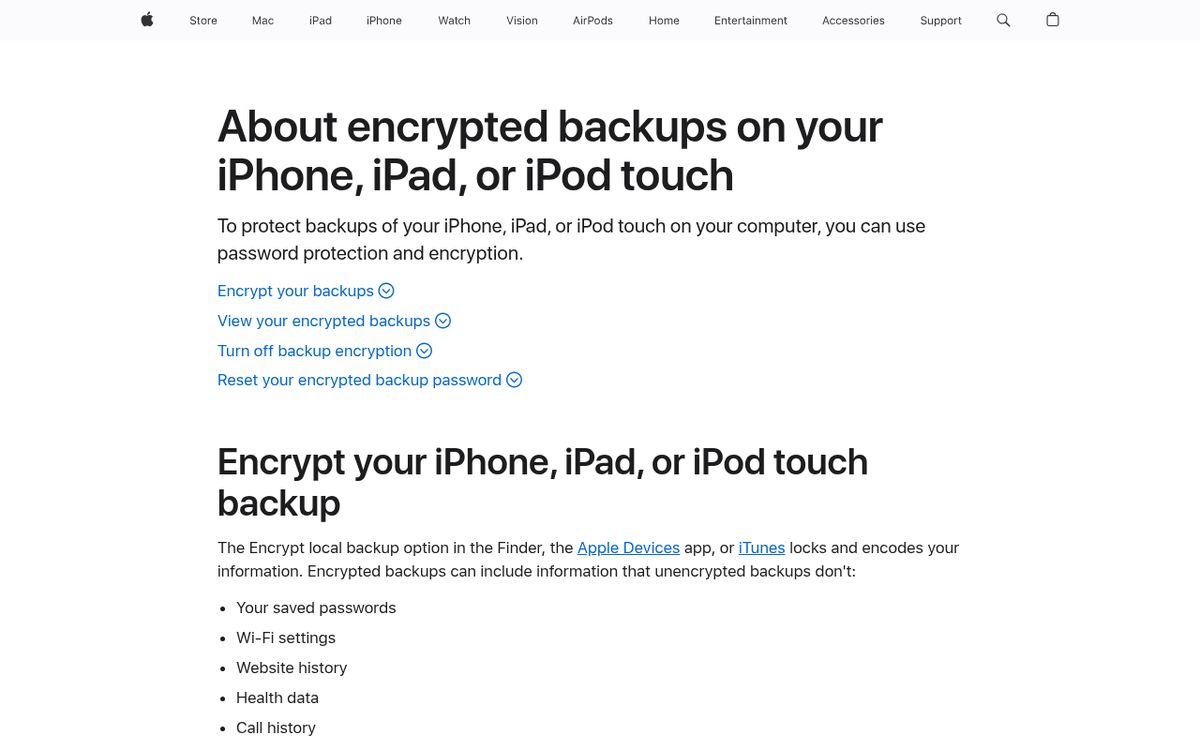
The critical responsibility is keep the backup password. It is required to restore that encrypted backup and is not necessarily the same as your device passcode or account password.
Do not expect every security setting to copy unchanged. Biometric authentication must be configured on the new device, and some apps require a fresh sign-in or verification.
Check particularly carefully:
- Recent photos and videos.
- Contacts and calendars.
- Messages and attachments.
- Locally stored documents.
- Authentication and financial apps.
- Cellular calling and mobile data.
Cellular activation is a separate part of setup. Moving content does not guarantee that your carrier’s activation requirements have been completed.
If limited storage is blocking preparation, our iPhone storage cleanup guide can help. Avoid deleting synced information casually just to make a transfer look smaller.
Retire the old phone only after verification
A real-world test beats a finished progress bar. Make a call, open important documents, inspect recent photos, and sign in to the apps you rely on.
Keep the new phone on power and Wi-Fi while remaining downloads finish. Some content may still be arriving even though the Home Screen is usable.
Do not erase the old device until you are satisfied that the new one contains what you need and that you have a usable backup.
Our guide to passkeys can also help you understand modern sign-ins while checking account access.
Once verification is complete, prepare the old phone properly for storage, trade-in, or sale. A deliberate final check is easier than recovering missing information after the original device has left your hands.
Reach designers & developers at work
Sponsored posts, links and listings, each clearly labelled as sponsored. One sponsor per placement.
Become a sponsor