
On this page
To learn how to right click on mac, hold Control while clicking an item, or enable Secondary click for your trackpad or mouse.
A right-click opens a shortcut menu with commands relevant to whatever is under the pointer. The menu for a document can differ from the menu for selected text or empty desktop space. You are not looking for one universal menu; you are asking the current app what actions are available there.
Start with Control-click
Apple’s right-click instructions call this action a secondary click or Control-click.
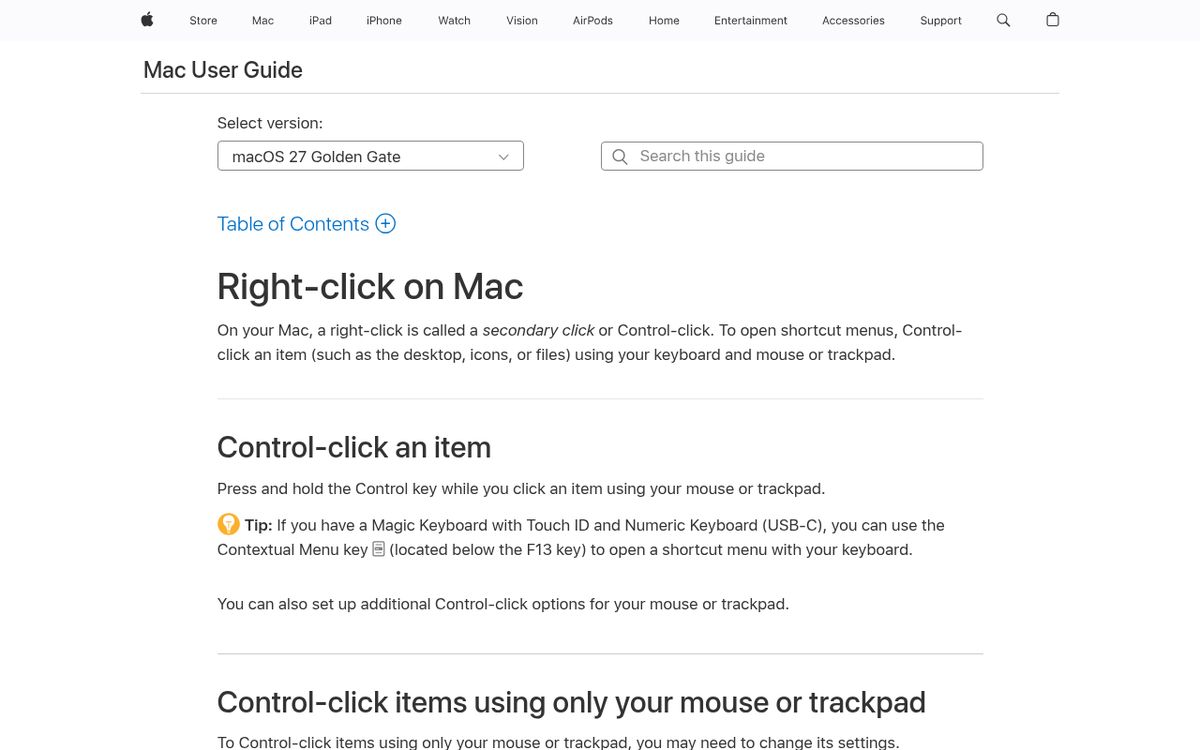
The Control-click method is a useful starting point because you can try it before changing any pointing-device settings.
- Move the pointer onto the item you want to act on.
- Press and hold the Control key.
- Click once with your mouse or trackpad.
- Release Control when the shortcut menu appears.
- Click the command you want to use.
Use Control, not Command. Those keys perform different jobs, and holding Command does not generally substitute for the secondary-click action.
For a simple test, try an ordinary file or an empty area of the desktop. The available commands should change depending on the target.
If you opened the menu accidentally, click elsewhere to dismiss it. Opening the menu alone does not run one of its commands, so you can practice the gesture without deliberately changing a file.
Enable a trackpad secondary click
The Secondary click setting determines which trackpad action opens the shortcut menu. A two-finger gesture is familiar to many users, but check your current selection rather than assuming it is enabled.
- Open the Apple menu.
- Choose System Settings.
- Select Trackpad in the sidebar.
- Locate the Secondary click control.
- Open its menu and choose the available gesture you prefer.
- Test that gesture on a desktop item.
Apple’s current instructions use System Settings, which applies to recent Mac releases including Sequoia and Tahoe 26. Much older tutorials may refer to System Preferences instead.
If you prefer using a corner of the trackpad, inspect the choices shown for your device. Follow the gesture demonstrated by the setting you select, rather than mixing a corner-click instruction with a two-finger setting.
Keep your fingers still during the click. A swipe or scroll is a different gesture and may move the content instead of opening a menu.
Control-click remains a useful fallback while you experiment with the trackpad configuration.
Set up a mouse for right-clicking
A mouse secondary click can be assigned to the side that feels most comfortable. Apple’s instructions include choosing the right or left side on a supported mouse surface.
- Open System Settings.
- Select Mouse in the sidebar.
- Find the Secondary click menu.
- Choose the side or option you want.
- Test it on an ordinary desktop item.
Do not assume a smooth mouse surface means secondary clicking is unavailable. The setting determines how a supported mouse interprets the click.
For a mouse with separate physical buttons, try the secondary button and compare it with Control-click. If Control-click works but the button does not, inspect the mouse configuration before blaming the app.
Third-party mouse utilities may introduce their own assignments. Use the manufacturer’s official instructions if a button has been reassigned or behaves differently from the system setting.
The practical test is whether your chosen action opens the same relevant shortcut menu. The button’s physical position matters less than the action configured for it.
Use a keyboard-supported alternative
Apple’s keyboard pointer controls provide options when using a mouse or trackpad is difficult.
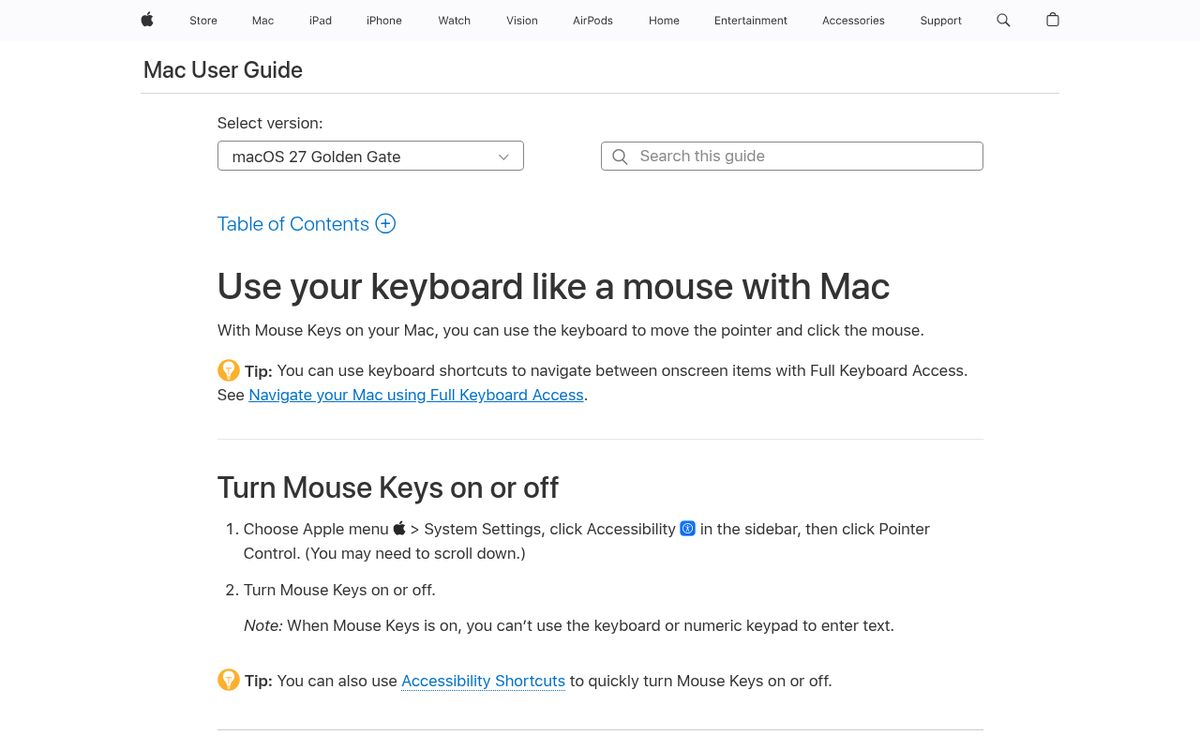
The Alternate pointer actions feature can assign mouse actions, including a right-click, to a keyboard shortcut or another supported input.
- Open System Settings.
- Choose Accessibility.
- Select Pointer Control.
- Turn on Alternate pointer actions.
- Open its customization controls.
- Review or configure the shortcut associated with a right-click action.
- Test the configured shortcut with the pointer over your target.
Use the shortcut displayed in your own configuration instead of assuming every Mac has the same assignment.
Apple also documents a Contextual Menu key on the Magic Keyboard with Touch ID and Numeric Keypad in its USB-C version. That key is below F13. It is a hardware-specific option, not a key present on every Mac keyboard.
Mouse Keys is another accessibility feature for moving the pointer and clicking from the keyboard, but it changes how certain keys behave. Apple warns that those keys cannot be used normally for text entry while Mouse Keys is on.
Troubleshoot missing or unexpected menus
The pointer’s exact location often explains why a right-click produces the wrong result. A menu for blank space is different from a menu for a file, link, or selected passage.
- Move the pointer directly over the intended target.
- Try Control-click as a baseline.
- Repeat with your preferred mouse or trackpad action.
- Test in another ordinary app or on the desktop.
- Recheck Secondary click if the gesture fails everywhere.
If Control-click works but a two-finger gesture does not, focus on the trackpad settings and your gesture. If one particular app behaves differently, consult that app’s official help rather than repeatedly changing the system configuration.
Some interfaces provide a visible More or action button instead of the shortcut-menu behavior you expected. Use that visible control when appropriate.
If you are documenting an intermittent issue, our guide to recording your screen on a Mac can help you capture what happens. Keep private information out of the recording.
Choose the method you can repeat comfortably
A consistent everyday gesture is better than switching methods every time you need a menu.
Control-click is straightforward and easy to explain to someone helping you remotely. A trackpad secondary-click gesture is convenient when both hands are already near the keyboard. A configured mouse button may feel more familiar if you regularly switch between computers.
For accessibility needs, spend time reviewing the pointer controls instead of forcing an uncomfortable gesture. Test the chosen action in several contexts, including a file, text selection, and empty desktop space.
Once the shortcut menu opens reliably, practice choosing commands carefully. Right-clicking is only the first step; actions such as deleting, moving, or renaming still depend on which menu command you select.
Reach designers & developers at work
Sponsored posts, links and listings, each clearly labelled as sponsored. One sponsor per placement.
Become a sponsor