
On this page
The quickest answer to how to block a number on iphone is to open the caller’s details in your recent calls, scroll down, and tap Block Caller.
Block a number from recent calls
Apple’s blocking instructions cover phone numbers, contacts, and email addresses. You can block a recent caller without first saving the number as a contact.
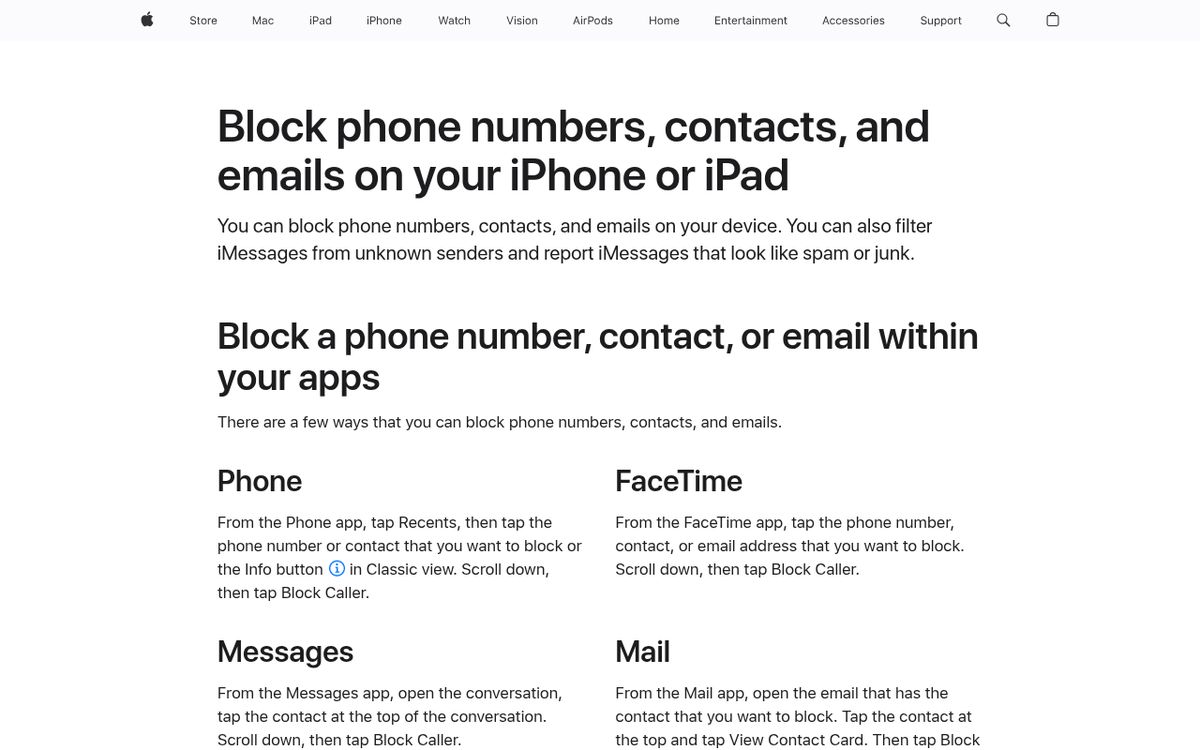
- Open the phone-calling app.
- Open the recent-calls list.
- Tap the number or contact to view its details.
- In Classic view, tap the information button beside the entry instead.
- Scroll down.
- Tap Block Caller and confirm if prompted.
The useful rule is open details before blocking. Tapping a number can behave differently depending on the layout, so use the information button when your screen provides one.
On older software, the action may be labeled Block this Caller rather than Block Caller. The destination is still the caller’s details, not a general notification setting.
Double-check the digits before confirming. A legitimate business may use several outgoing numbers, while an unwanted caller may rotate numbers. Blocking the wrong entry creates inconvenience without stopping the actual source.
Block someone from a text conversation
Apple’s same instructions also explain blocking through Messages. This is usually easiest when the unwanted contact first reached you by text.
- Open the conversation.
- Tap the name or number at the top.
- Open the contact information if your software shows an additional information control.
- Scroll down.
- Tap the blocking action and confirm.
Use the sender’s identity, not a link inside the unwanted message. You do not need to visit a website, reply with personal information, or download anything to block a sender.
Blocking a number through Apple’s communication controls also affects its supported calling and messaging routes. However, an unrelated third-party chat app manages its own blocked list.
Keep evidence first if you may need it. Blocking and deleting are different actions; there is no reason to erase a conversation simply because you want to stop future contact.
If a suspicious text asked you to reveal a password, our guide to checking whether your password was leaked explains a useful next security check.
Manage the blocked list in iOS 26
Apple moved to centralized blocked contacts in iOS 26. The current location is Settings > Privacy & Security > Blocked Contacts.
- Open Settings.
- Tap Privacy & Security.
- Tap Blocked Contacts.
- Tap Add Blocked Contact.
- Select or enter the contact as prompted.
- Confirm the block.
To undo a block, open the same list, select the contact, and use the unblock action. Depending on the entry and layout, you may instead use Edit and the removal control before confirming Unblock.
Older instructions that send you into an individual app’s blocked-contact settings may describe an earlier software version. For iOS 18, check Settings > Apps > Phone > Blocked Contacts when managing the phone app’s list.
If you are unsure which version you have, open Settings > General > About and read the version information. That small check can explain why an otherwise legitimate tutorial shows a different menu path.
Unblocking allows future communication again. It should not be treated as a way to retrieve messages that were never delivered while the block was active.
Know what a blocked caller experiences
The most important limitation is blocking is not total invisibility. Apple says a blocked caller can still leave voicemail, but you do not receive a notification for it.
Messages associated with the block are not delivered, and Apple does not send the person a notification announcing that you blocked them.
That does not mean the other person cannot make guesses based on what happens when they contact you. Avoid promises that blocking is impossible to notice.
Apple’s blocking controls also do not stop someone from using a different number, another address, or a separate messaging service. Review each route involved when unwanted contact continues.
Group conversations have additional limits. Do not assume blocking one participant makes your messages invisible to that person in every shared group.
If the situation involves threats or persistent harassment, prioritize your safety and preserve relevant records before making major account changes. Blocking is a useful communication control, not a complete personal-safety plan or a guarantee that every route has been closed.
Handle unknown callers and repeat spam
For rotating numbers, call screening and filtering can be more useful than building an endless list of individual blocks.
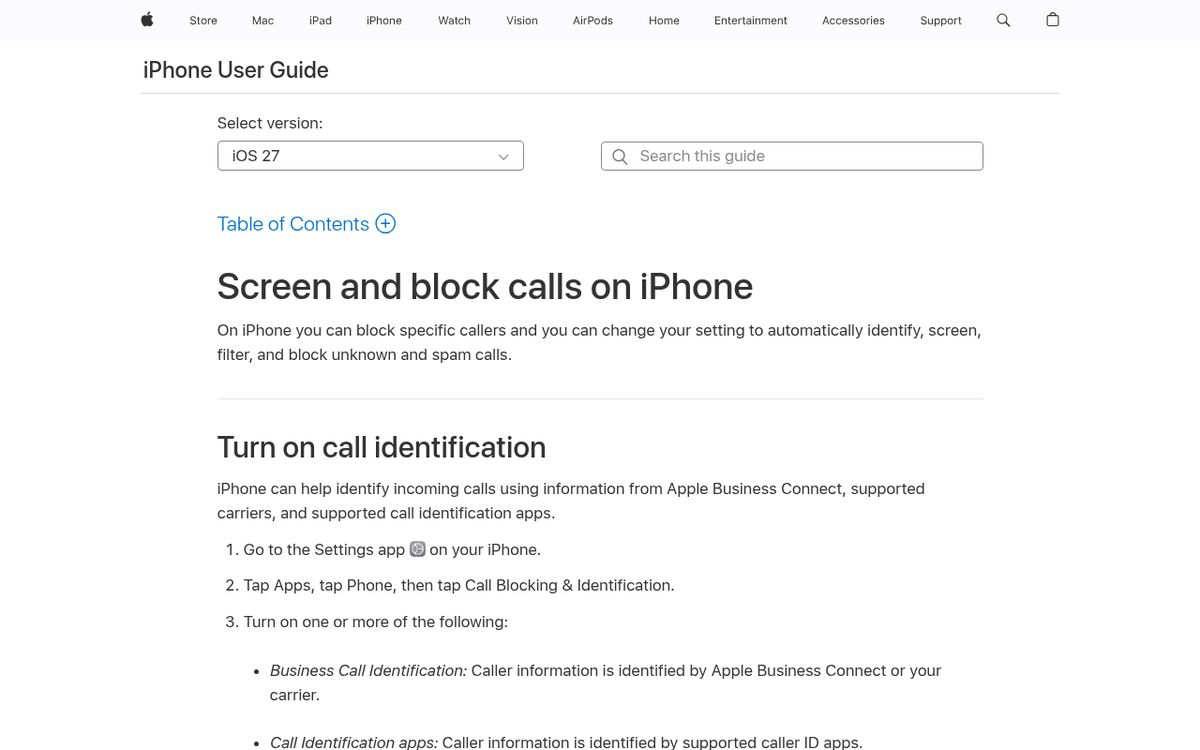
In iOS 26, supported screening choices can ask an unknown caller for their name and reason before interrupting you. Another choice silences unsaved numbers and sends them to voicemail.
- Open Settings.
- Tap Apps.
- Tap Phone.
- Review the available screening, silencing, and filtering controls.
- Choose the behavior that matches your needs.
Remember that unknown does not automatically mean spam. Delivery drivers, medical offices, interviewers, and repair technicians may call from numbers you have not saved.
Availability differs by feature, language, and region, so use the options actually shown on your phone.
On older releases, you may see Silence Unknown Callers rather than the expanded iOS 26 screening choices. Do not expect an older phone’s software to offer every newer control.
Finish with a practical check
Your best setup matches the problem: block a specific persistent caller, and use screening carefully when the problem is a stream of unfamiliar numbers.
Before changing several controls at once:
- Confirm the blocked entry is the correct number.
- Save important expected callers.
- Check voicemail when waiting for an unfamiliar business.
- Review third-party messaging apps separately.
- Keep records you might need later.
If the real problem is account compromise rather than unwanted calls, blocking a sender will not secure the account. Our explanation of passkeys covers a different protection worth understanding.
Finally, revisit the blocked list if an expected contact cannot reach you. An old accidental block is easy to overlook, especially after moving to a new phone or changing your contact records.
Reach designers & developers at work
Sponsored posts, links and listings, each clearly labelled as sponsored. One sponsor per placement.
Become a sponsor