
On this page
The answer to how to hide apps on iphone is to touch and hold a supported app, tap Require Face ID, then choose Hide and Require Face ID and confirm.
Know what hiding actually does
Apple introduced app locking and hiding in iOS 18, and the feature remains available in iOS 26. It moves a supported app into an authenticated Hidden folder rather than uninstalling it.
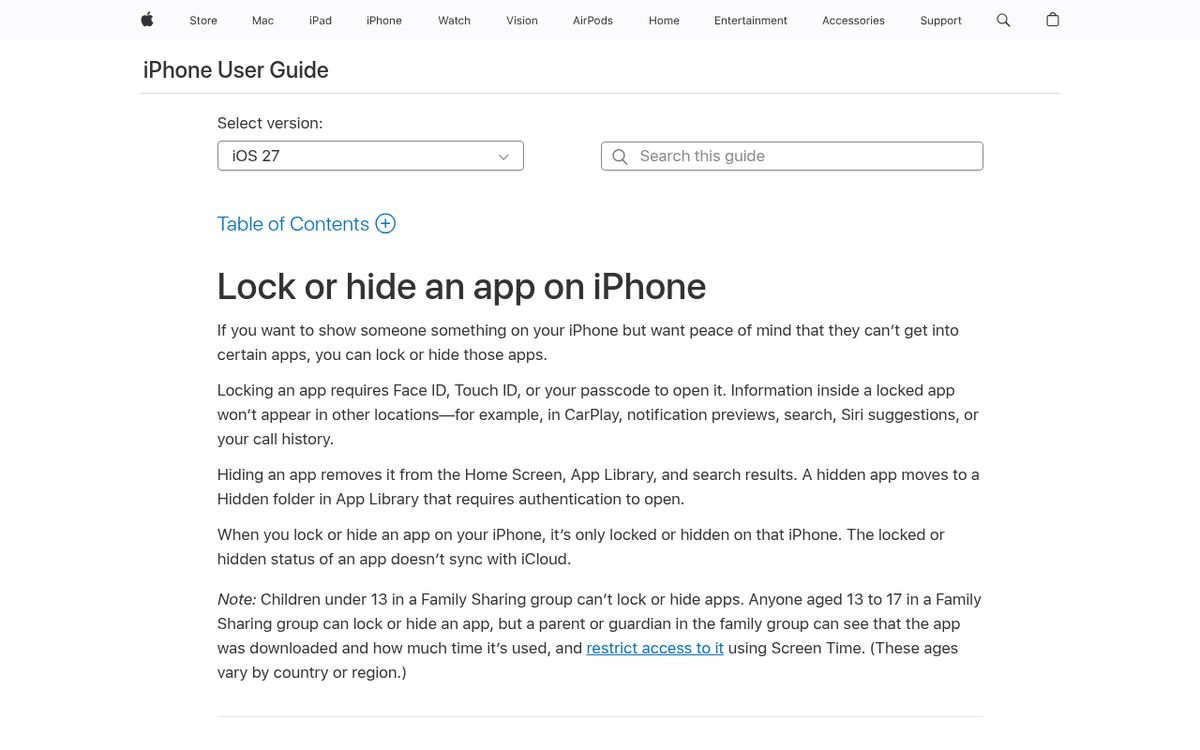
The important distinction is hiding is not deleting. The app remains installed, and hiding does not cancel subscriptions, erase its account, or remove information held by its provider.
Apple offers two related choices:
- Lock an app so opening it requires authentication.
- Hide a supported app so it also leaves the ordinary visible app layout.
A hidden app does not appear in ordinary search results. However, hiding is not a promise that every trace of installation disappears from the device or your account.
Choose locking when you want an app to remain easy to find but harder for someone borrowing your unlocked phone to open. Choose hiding when you also want its icon removed from the normal browsing experience.
Hide a supported app
Start with an app you downloaded separately, not one that came preinstalled. Read the confirmation screen before accepting it, particularly if you rely on the app for time-sensitive communication.
- Go to the Home Screen.
- Touch and hold the app icon until its quick-actions menu appears.
- Tap Require Face ID.
- Tap Hide and Require Face ID.
- Authenticate when prompted.
- Tap Hide App to confirm.
On applicable models, the menu can refer to fingerprint or passcode authentication instead. Follow your device’s displayed wording rather than expecting every model to say Face ID.
The app moves to the Hidden folder at the bottom of the app library. It is not placed inside an ordinary folder you created yourself.
If you only see an option to require authentication, do not assume a second tap will force hiding. Some apps are eligible for locking but not hiding, and some are not eligible for either operation.
You do not need to create an automation, rename the app, or replace its icon to use Apple’s built-in feature.
Find and unhide an app later
Apple’s missing-app instructions distinguish hidden apps from apps that are merely absent from a Home Screen page.
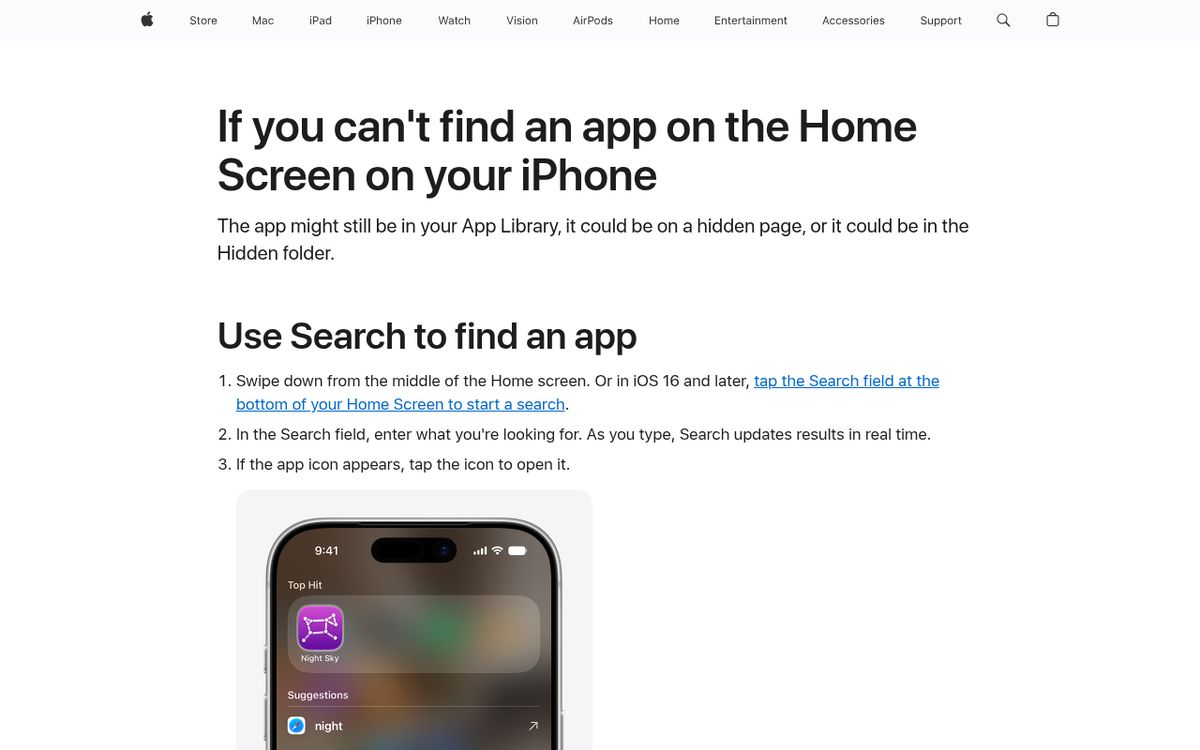
To open an app you deliberately hid:
- Swipe left past all Home Screen pages.
- Scroll to the Hidden folder.
- Tap the folder.
- Authenticate.
- Tap the app you want to open.
For unhiding an app, touch and hold its icon inside the authenticated folder, then tap Don’t Require Face ID or the equivalent option shown on your phone.
The app returns to the regular app library. If you want its icon on a Home Screen again, add it back from there; do not assume it will automatically occupy its previous position.
You can also review hidden apps in Settings > Apps > Hidden Apps after authentication. This is useful when you remember hiding something but cannot immediately identify the icon you need.
Do not search repeatedly for a deliberately hidden app and conclude that it has been erased. Hiding is designed to keep it out of ordinary search.
Remove an icon without hiding the app
Sometimes the goal is simply a cleaner screen. In that case, Apple’s app library and Home Screen controls may be enough.
Removing an icon from the Home Screen is organization, not access protection. The app can still be found in the app library and through search.
- Touch and hold the app icon.
- Tap Remove App.
- Choose Remove from Home Screen rather than Delete App.
Hiding an entire Home Screen page is similarly different from hiding individual apps with authentication. Apps on a hidden page still exist in the regular library and remain searchable.
To inspect pages, touch and hold an empty Home Screen area, tap Edit, then Edit Pages, or use the page dots when offered. The checked circles identify pages currently displayed.
This lighter approach suits seasonal apps, rarely used utilities, and visual clutter. Use the authenticated hiding feature when the goal is to limit casual access, not merely reduce the number of icons.
If your goal is recovering storage, hiding will not help. Use our iPhone storage cleanup guide instead.
Understand the privacy limits
Apple’s documentation makes clear that hidden does not mean undetectable. An app’s name can still appear in places such as battery usage, certain usage settings, and purchase history.
Preinstalled apps cannot be hidden through this feature. Apple also documents restrictions involving apps configured as the default browser or, where supported, an app marketplace.
Age and family settings matter too. Children under 13 in a family group cannot lock or hide apps; Apple notes that applicable ages vary by country or region. For teens, a parent or guardian may still see download and usage information.
The hidden or locked state applies only to the particular device. It does not automatically synchronize that status to your other devices.
Do not treat an ordinary folder with a vague name as equivalent protection. Anyone browsing an unlocked phone can generally open a normal folder.
Protect your account as well as your device. Our explanation of passkeys describes a separate layer of sign-in security; hiding an icon does not replace secure account authentication.
Check the result before relying on it
A quick verification pass helps prevent misunderstandings after changing privacy settings.
- Return to the Home Screen and confirm the icon is absent.
- Check that you can locate the authenticated Hidden folder.
- Open it yourself and confirm the app remains available.
- Review whether the app’s communication behavior still meets your needs.
Do not assume that hidden apps will behave like ordinary visible communication apps. Read Apple’s warning and the confirmation text before hiding anything you depend on for calls, notifications, or urgent alerts.
For shared or borrowed phones, locking an app may be a more practical compromise. You retain the visible shortcut while requiring authentication to enter it.
Use the least disruptive option that meets your goal, and make sure you know how to reverse it before relying on it for everyday access.
Reach designers & developers at work
Sponsored posts, links and listings, each clearly labelled as sponsored. One sponsor per placement.
Become a sponsor