
On this page
To learn how to clear cache on mac, start with the affected browser’s data controls rather than deleting system folders or every temporary file on the computer.
Cached files help apps avoid downloading or rebuilding the same information repeatedly. Clearing the relevant cache can help when a website displays stale content, but routine blanket deletion is not a guaranteed speed boost. It can make the next visit slower while the app rebuilds what it needs.
Choose the smallest useful cleanup
The scope of the problem should determine what you remove. A broken website, an app behaving strangely, and a nearly full drive are different situations.
Start by identifying which of these best describes your Mac:
- One website shows outdated content or broken formatting.
- Several websites behave incorrectly in one browser.
- A particular desktop app has a problem.
- The entire drive is running low on available space.
For a single website, target that site’s data when your browser offers the option. For general browser display problems, remove cached browser files before considering more disruptive categories.
Do not assume that cookies, browsing history, downloads, and cache mean the same thing. Cookies can preserve sign-in sessions and preferences. History records visited pages. Downloaded documents are your files, not disposable browser cache.
Save any unfinished work in browser tabs before starting. Removing website data can interrupt a session, and a refresh may discard an unsent form or an unsaved edit.
Remove website data in Safari
Safari provides controls for reviewing and removing stored website data.
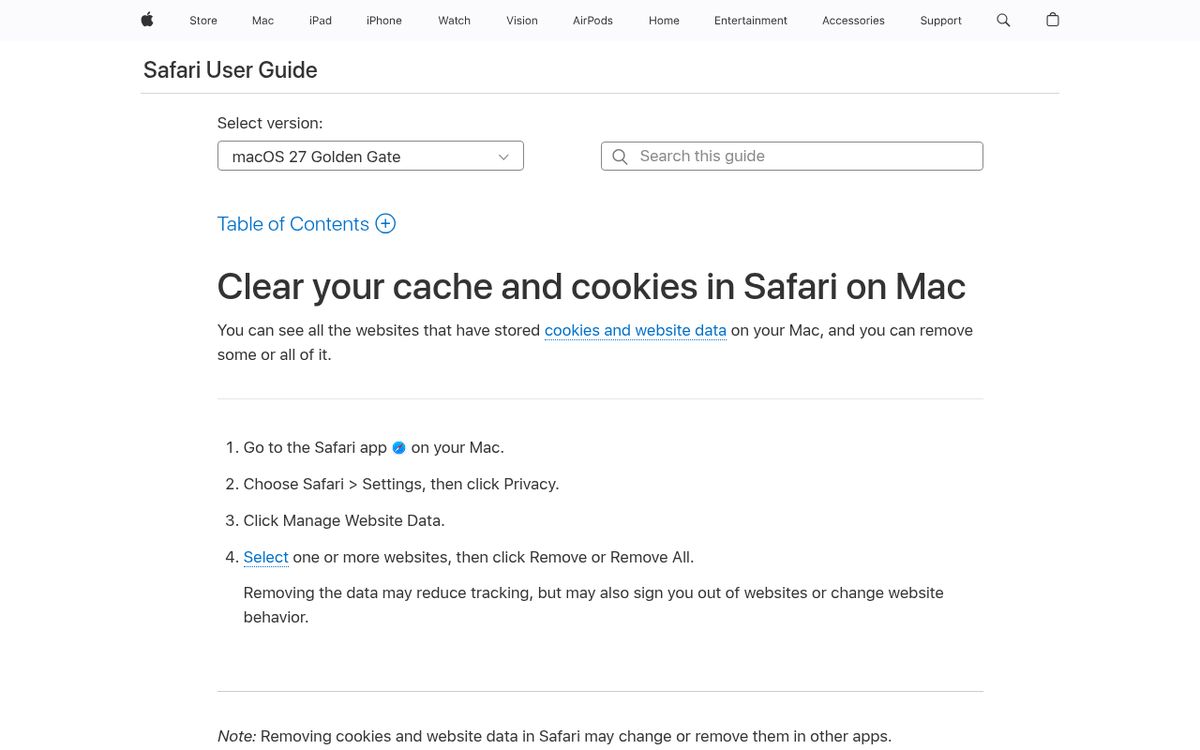
The Manage Website Data panel is useful for targeting a problematic site. Be aware that this method removes website data more broadly; it is not a promise to delete only cached images while leaving every cookie untouched.
- Open Safari.
- Choose Safari from the menu bar, then Settings.
- Click Privacy.
- Click Manage Website Data.
- Select the website you want to troubleshoot.
- Click Remove, or choose Remove All if you deliberately want a broader reset.
Apple warns that removing this data can sign you out of websites or change their behavior. It can also affect website data used in other apps.
For that reason, begin with one site rather than Remove All when the problem is isolated. Return to the site afterward, sign in if necessary, and check the specific page that was failing.
These are the current Safari settings labels used on recent Mac software. Do not look for a phone-style app settings screen; the browser’s settings are accessed from its menu bar.
Clear cached files in Chrome
Google Chrome lets you choose which browsing-data categories to remove.
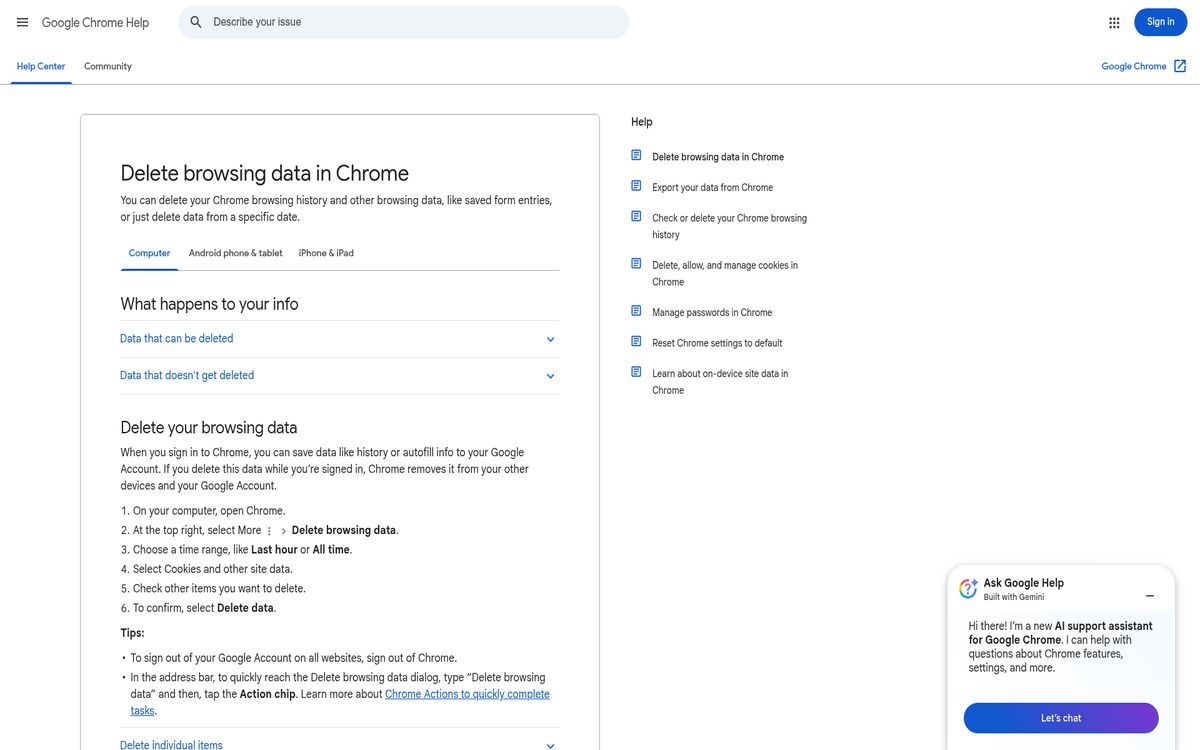
Use Cached images and files when your goal is a cache cleanup without intentionally clearing unrelated categories.
- Open Chrome.
- Open the three-dot More menu in the upper-right corner.
- Choose Delete browsing data.
- Select an appropriate time range.
- Select Cached images and files.
- Review the other selected categories and clear any you want to keep.
- Click Delete data.
Choose a shorter time range if the issue began recently. If old cached content remains a possibility, repeat the process with All time after checking the selected categories again.
Cookies and other site data are a separate choice. Removing them may help with a persistent site-session problem, but it can also sign you out or reset preferences.
Google notes that some browsing data can be associated with your account and other devices. Do not select history, saved form information, or other categories merely because they appear beside the cache option.
Handle app and system caches conservatively
For app-specific problems, use the app developer’s documented reset or cleanup controls. There is no single safe folder-deletion recipe that applies to every installed program.
- Save your work and quit the affected app.
- Reopen it and check whether the problem persists.
- Read the developer’s official troubleshooting instructions.
- Use a documented cache-clearing option if one is provided.
- Test again before changing anything else.
Do not delete an entire Library folder, remove unfamiliar support files, or empty protected system locations to follow a generic cleanup guide. Data stored near a cache may include settings, databases, downloaded assets, or working files.
A folder name alone does not establish that everything inside it is safe to remove. The same caution applies to commands that delete many files at once.
On macOS Sequoia and Tahoe 26, begin with the same conservative distinction: browser cleanup belongs in browser controls, and app cleanup belongs in the app’s documented workflow. Avoid treating all system-managed storage as user-maintained clutter.
Use storage management when space is the problem
Apple’s Mac storage guidance is a better starting point when your drive is almost full.

The Storage category breakdown helps you look beyond caches and identify larger, more durable opportunities to recover space.
- Open the Apple menu and choose System Settings.
- Click General.
- Click Storage.
- Review the categories and available management options.
- Inspect large personal files before deciding what to move or delete.
Apple explains that System Data contains files that do not belong to more specific categories. It is not a dedicated cache folder and should not be treated as one.
Large videos, redundant downloads, and unused applications may matter more than browser cache. If video files dominate your storage, see our guide to compressing a video.
Likewise, if the issue is actually on your phone, use our separate guide to freeing up storage on iPhone and Android rather than applying Mac instructions.
Test before deleting anything else
A one-change-at-a-time check makes troubleshooting more useful than repeatedly clearing everything.
- Reopen the affected browser or app.
- Return to the page or action that previously failed.
- Allow content to download again.
- Check whether the original symptom is gone.
- Stop if the targeted cleanup worked.
A slower first load after clearing cache is expected because cached resources must be retrieved again. That alone does not mean the cleanup failed.
If the problem remains, record what happens and which data you already removed. Use that information with the vendor’s troubleshooting guidance instead of escalating immediately to system-folder deletion. The goal is a working Mac, not a permanently empty cache.
Reach designers & developers at work
Sponsored posts, links and listings, each clearly labelled as sponsored. One sponsor per placement.
Become a sponsor