
On this page
To learn how to make a pdf smaller, export a compressed copy with a PDF app or use an online PDF compressor, then check the result before replacing the original.
The best method depends on your computer, the document’s contents, and whether you are allowed to upload it to a service. Image-heavy scans often offer more room for reduction than short, mostly text-based documents. No compression method guarantees that every PDF will shrink by the same amount.
Check the target before compressing
A clear file-size target prevents unnecessary quality loss. Find the upload limit or attachment requirement before changing the document.
- Check the current PDF’s size using your computer’s file information controls.
- Read the destination’s file-size and file-type requirements.
- Save an untouched copy of the original.
- Decide whether the document contains confidential information.
- Choose a local or online method accordingly.
Aim to get below the actual limit rather than creating the smallest possible file regardless of readability. A document that uploads successfully but has unreadable diagrams has not solved the problem.
Also check whether the limit applies to one file or the entire submission. Several individually acceptable PDFs may still exceed a combined attachment allowance.
For private records, follow your organization’s approved process. The fact that an online service is convenient does not automatically make it appropriate for medical, financial, legal, or client documents.
Make a smaller PDF on a Mac
Preview includes a built-in export filter for reducing a PDF’s file size.
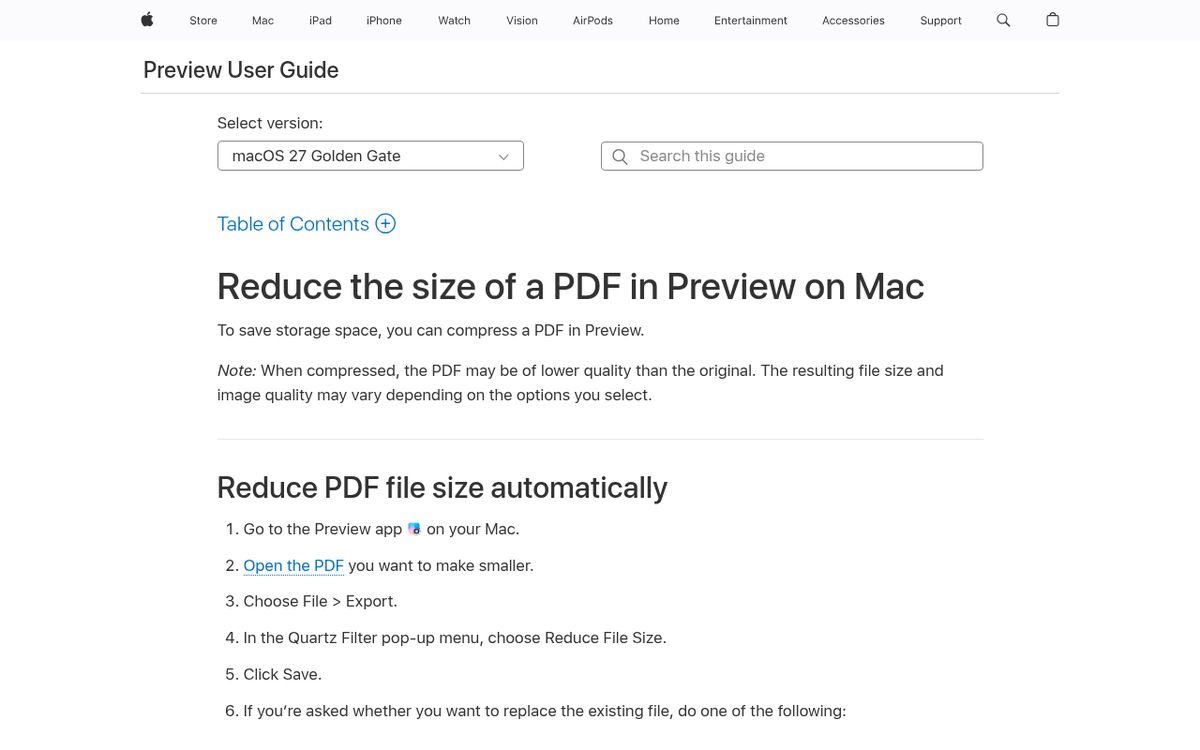
Use Reduce File Size to create a separate compressed version rather than immediately overwriting the source.
- Open the PDF in Preview.
- Choose File, then Export.
- Open the Quartz Filter menu.
- Choose Reduce File Size.
- Enter a different filename for the compressed copy.
- Choose a save location and click Save.
- Open the saved copy and inspect it.
Apple warns that compression can lower quality and that the resulting size varies. A smaller PDF may have softer photographs, less legible scanned text, or diagrams that are harder to read.
The Export command matters here. Follow that workflow rather than assuming another save or printing command presents the same controls.
Keep the original until the compressed copy passes your checks and the destination accepts it. If the result is too blurry, try a different approach instead of repeatedly applying the same filter to the degraded copy.
Review Preview’s additional export options
Apple’s current Preview documentation also describes image-focused export options that may appear when exporting a PDF.
- Open the original PDF.
- Choose File, then Export.
- Review the options available in your version.
- Consider Optimize images for screen when the document is intended for screen viewing.
- Consider Save images as JPEG when that tradeoff suits the content.
- Save under a new filename and compare the result.
The documentation also lists Create Linearized PDF, which optimizes a document for faster loading and viewing in web browsers. Treat that as a web-viewing optimization, not a guarantee of a particular size reduction.
These extra controls can differ by software version. On Sequoia or Tahoe 26, use the options actually shown in your Export dialog; if an option is absent, return to the documented Quartz Filter method.
Photographs and fine line drawings have different needs. Check both kinds of content if your PDF contains them, rather than judging the whole document from its cover page.
Compress a PDF on Windows or online
Adobe Acrobat’s online PDF compressor provides a browser-based option for Windows 11 and other computers.
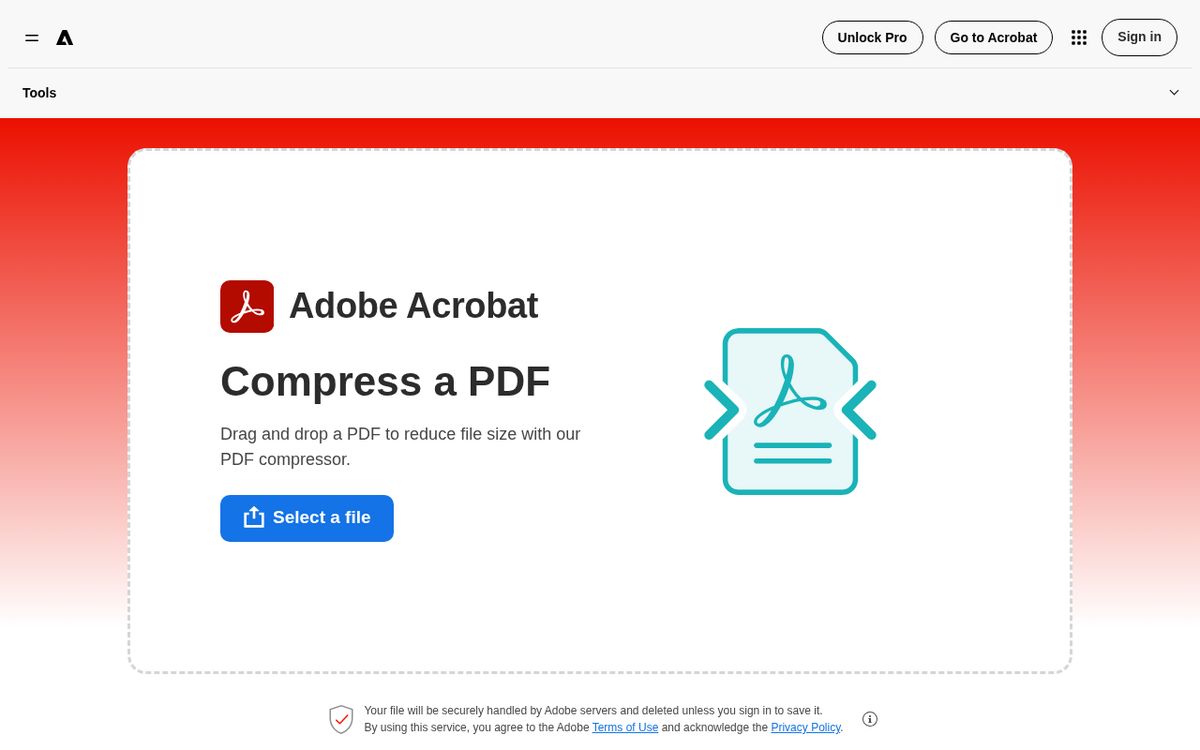
This browser-based workflow does not require pretending that Windows has the same built-in export controls as Preview.
- Open Adobe’s official compressor page.
- Click Select a file, or drag the PDF into the upload area.
- Choose the PDF you want to reduce.
- Select the compression level offered by the page.
- Let the upload and compression finish.
- Download the resulting PDF.
- Open the downloaded file and compare it with your original.
The service’s interface or account prompts can change, so read the current page before uploading. Do not assume a particular usage allowance, price, or account requirement will remain unchanged.
For confidential material, stop before uploading unless the service is approved for that document. An offline workflow may be the better choice even when an online compressor is easier to access.
Check quality, content, and behavior
A full-document spot check is essential because a successful download only proves that a file was produced.
- Compare the new size with the original.
- Open the first, middle, and final pages.
- Inspect the smallest text and the most detailed images.
- Confirm that the page count and order are correct.
- Test important links or interactive elements if the document uses them.
- Try the actual upload before deleting any working copies.
If the PDF is a scan, zoom in on faint writing, small numbers, and stamps. These details may become difficult to distinguish before larger text looks obviously damaged.
Do not assume editing or recompressing a signed document will preserve its required status. If signatures or formal submission rules matter, check the recipient’s requirements before modifying the file.
When the PDF is part of a recorded tutorial, our guide to recording your screen on a Mac can help you demonstrate the workflow without exposing unrelated documents.
Keep the best acceptable copy
The smallest usable version is the goal, not the smallest file at any cost. Keep the copy that meets the destination’s requirements while remaining easy to read.
If a PDF barely shrinks, it may already be efficiently stored. Return to the source document, where available, and consider whether oversized images or unnecessary content can be reduced before exporting again.
Putting a PDF inside a ZIP is not the same as optimizing the PDF itself. It may provide little reduction, and the destination may require a PDF rather than an archive.
For other oversized media, use the right workflow for the format. Our guide to compressing a video addresses a different problem from PDF optimization.
Once the recipient accepts the document, retain the original wherever you normally keep important source files. Label the smaller copy clearly so you can tell the submission version from the higher-quality master later.
Reach designers & developers at work
Sponsored posts, links and listings, each clearly labelled as sponsored. One sponsor per placement.
Become a sponsor